Advanced setting items of the SVF button
"Action" tab
 |
From the list of actions, select one or more output methods of the form.
The icons displayed in the list differ depending on the tool used to create the selected form layout. For details, see "Create a form layout".
Some output methods require the additional setting fields.

Filter When Selecting Printer
Set whether to filter the printers displayed in the printer list by SVF Cloud Agent during direct printing. For details, see "Filter the printers displayed when printing".
Specify the Number of Copies to Print at Execution
You can set whether or not to specify the number of copies on the screen for specifying the printer at direct printing. For details, see "Print forms from a printer".

Fax Number
Specify the Salesforce field in which the fax number of the destination is entered. For details, see "Send forms by fax".

Set details such as recipient address and body text of an email to be sent. For details, see "Send forms by email".
Execute Continuously
Specify this to execute continuously the output methods selected in Action. For details, see "Output forms in multiple methods at the same time".
Not Showing Preview Screen
Set to skip previewing and output the form. For details, see "Output a form without seeing its preview screen".
"File" tab
 |
Name of Generated File
Specify the name of the output file (PDF file, Excel file, Word file).
(ObjectAPIName)_(Timestamp)
This is a combination of API name of Salesforce object and timestamp at the time of output.
For example, if you output from "Accounts Object" at "0:00 on January 1st, 2017", it will be "Account_20170101000000000".
Static Text
You can specify any text.
Salesforce Field
You can specify any Salesforce field.
This is useful, for example, when you want to distinguish the output files by the values of Salesforce fields such as "Account Name" or "Opportunity Name".
Restriction
Restriction for the names of generated files
You can use up to 40 characters for the generated file name. (Both single-byte and double-byte characters are counted as one character.)
In the generated file name, "characters that are not allowed in file names" defined by the OS of the SVF Cloud for Salesforce operating environment are replaced with an underscore "_". (For the latest "characters that are not allowed in file names", see the OS support page, etc.)
Switch Form Layout
Set whether to separate page or file by record when outputting multiple records selected.
The procedure of separation depends on the form output method. For details, see each output method settings.
EUDC Font
Set whether to output EUDC fonts created in Windows.
In order to output external fonts, you have to register such fonts to SVF Cloud Manager. For details, see "Output external fonts to forms".
"Pre-process / Post-process" tab
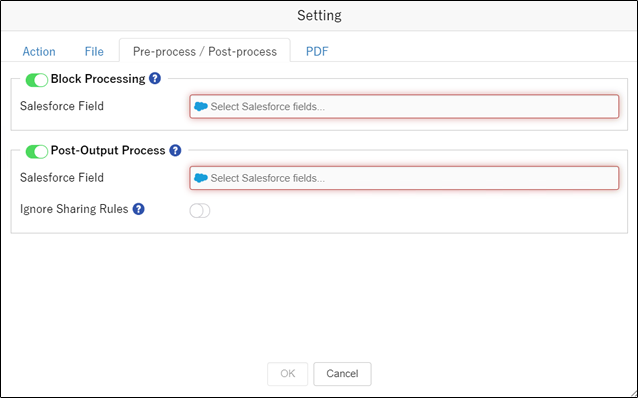 |
Block Processing
The form is not output if the checkbox-type Salesforce field selected is set to "true" (ON).
The following controls can be performed.
Do not output records that are not confirmed by a person in charge
Do not output records once output (setting Post-Output Process is also necessary)
Post-Output Process
After outputting the form, update the checkbox-type Salesforce field selected to "true" (ON). You can control whether reprinting of the records is allowed or not by using this and Block Processing together.
When enabling Ignore Sharing Rules, you can update the value forcibly, even if the record is locked or if the field editing permission is not granted by sharing settings. Note that if the record is locked, it is forcibly unlocked. It will not automatically re-lock, so you need to lock it again if necessary.
Keep the following in mind when using the post-output process:
Timing for execution
When outputting a form using the following methods, the post-output process is executed when the send request ends normally. Note that the timing is different from the completion of printing and that of delivery of email or fax.
Whether values are updated if processing fails
When a failure occurs during the form output process or the post-output process, whether or not values are updated by the post-output process depends on the form output method.
When a failure occurs


During the form output process
All record values are not updated.
The value is updated only for records that have been successfully output a form.
During the post-output process
All record values are not updated.
All record values are not updated.
Restriction
When outputting forms from , it is not recommended to use "Post-Output Process" due to the specification of the process.
Reference
Apex class for using post-output process
Apex class "svfcloud.PostUpdateResource" must be enabled to use post-output process.
If an error occurs in post-output process, confirm that the Apex class is enabled for the user clicking the button.
"PDF" tab
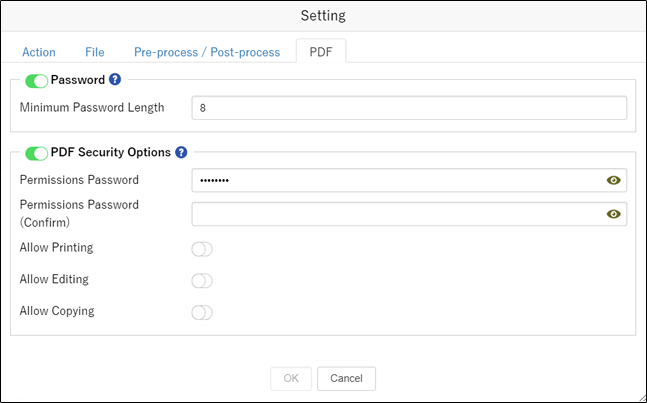 |
Password
Specify whether to set a password for opening the document in the PDF file output by executing or , and the minimum number of characters to set the password if you set it.
For output methods other than and , it is not possible to set a password for opening documents.
PDF Security Options
Set security on an output PDF file and restrict operations on the PDF file.
In Permissions Password, set the password for changing the settings of the output PDF file.
The following items determine the range of operation restrictions.
Allow Printing
Allows printing.
Allow Editing
Allows editing of the contents.
Allow Copying
Allows copying of the contents.