Filter the printers displayed when printing
When direct printing, all of the printers registered in SVF Cloud are shown in the list. You can set to filter them as follows. However, you can use only one filtering.
Filter by SVF Cloud Agent
Only the printers registered in the SVF Cloud Agent of the user who gave the print instruction are displayed.
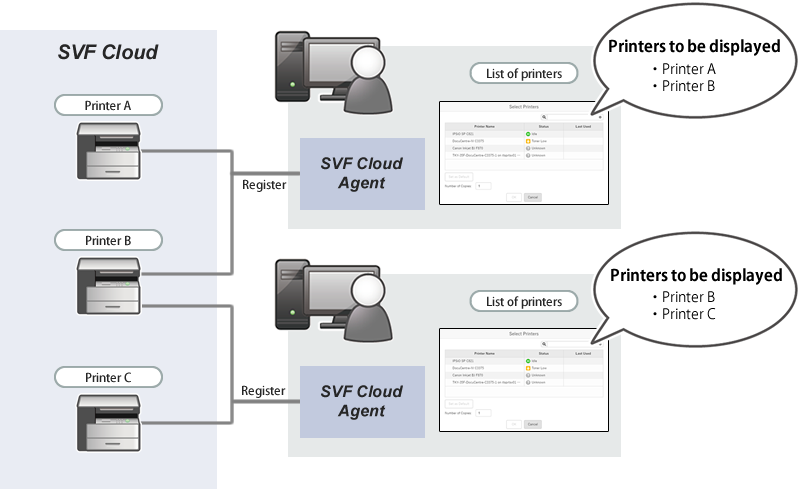
Which SVF Cloud Agent a user is using is determined by matching the user's Salesforce user field (user name, email address, etc.) with the agent name of SVF Cloud Agent. If multiple SVF Cloud Agents are applicable, the menu to select an SVF Cloud Agent will be displayed.
The user field to be matched with the agent name is specified on the SVF button advanced settings screen.
Filter by public group of Salesforce
Only printers registered the public group to which the user who gave the print instruction belongs are displayed. In advance, register the target publishing group for each printer.
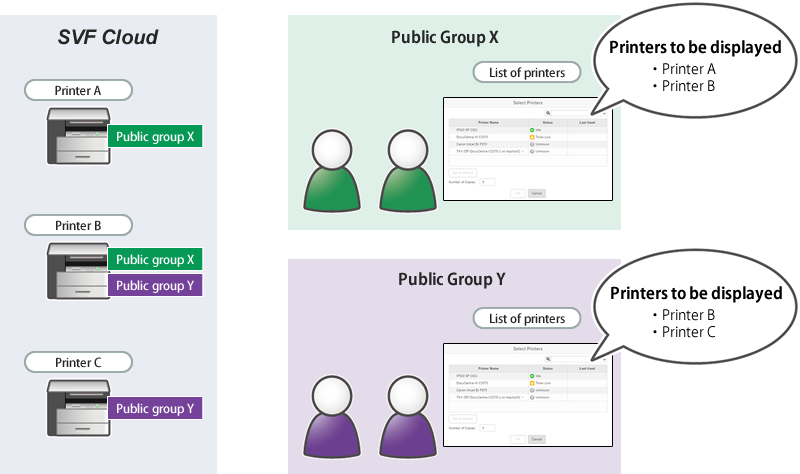
You can select one of the following actions when a user who does not belong to any of the registered public groups gives print instructions.
Display all printers registered in SVF Cloud (default)
Hide all printers
For details on the settings, see the following:
Filter by SVF Cloud Agent
Preparation
Set SVF button in Sandbox environment (up to step 19 for Salesforce Classic or Lightning Experience).
Notes
This feature is only available in SVF Cloud for Salesforce.
When you have changed the SVF button settings, you need to create the print button again.
To filter by SVF Cloud Agent, set as follows on the SVF Button Settings screen.
For details on how to use the SVF Button Settings screen, see "2. Set SVF button in Sandbox environment".
Setting item | Setting |
|---|---|
SVF Button Settings screen - SVF Button Information - | On |
SVF Button Settings screen - SVF Button Information - | Specify the user field to be matched with the agent name |


Filter by public group of Salesforce
Preparation
Set public groups of Salesforce. (For public groups, see the Salesforce Help.)
Notes
This feature is only available in SVF Cloud for Salesforce.
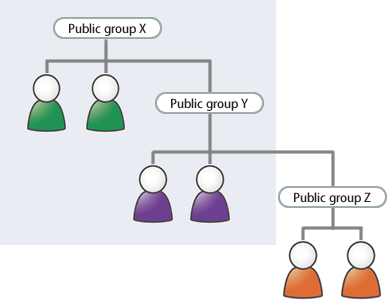
When there are hierarchies of public groups, the public groups in the third or lower hierarchies are not supported.
For example, in the hierarchies shown in the figure, if "Public group X" is registered to the printer, the printer will not be displayed to the users of "Public group Z".
Log in to SVF Cloud Manager.
Click
 Printer to open the printer management screen.
Select the target printer, and click Details - Salesforce Public Group Settings.
If the Salesforce login screen appears, enter login information to login.
Click the Add button to specify a public group from the list.
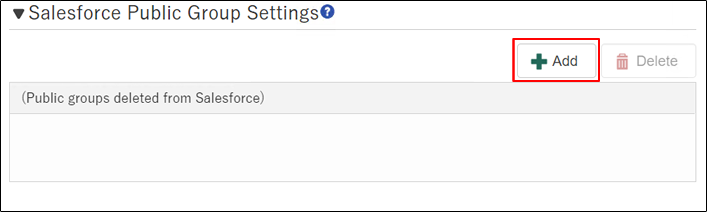
By clicking the OK button, public group registration is complete.
Operations when the user does not belong to the public group
The following is the procedure to change the default behavior performed when a print instruction is given by a user who does not belong to any registered public group.
Log in to Salesforce.
From the Setup in Salesforce, open the Custom Metadata Types page.
In the row where the Installed Packages is "SVF Cloud for Salesforce", click Manage Records.
In the row where the Label is "SVF Cloud", click Edit.
Deselect View All Printers.
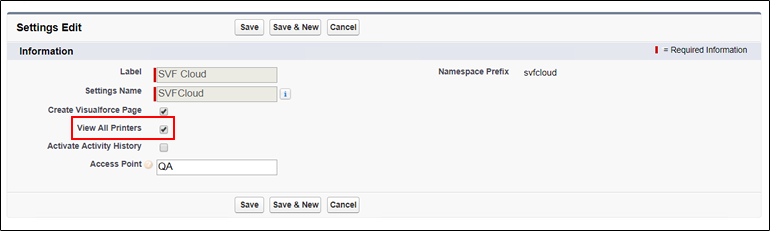
By clicking the Save button, change of setting is complete.