Send forms by email
You can send the output form as an email attachment.
This section explains the settings for sending a form as an attachment to an email.
Common to all products
This is a required procedure for all products.
Create a form layout
You can create a form layout by using the form layout creation tool. See "Form output methods and form layout types" in "Create a form layout" and use the appropriate tool for the product that outputs forms.
Note that the type of a generated form will differ depending on the type of form layout.
Types of form layouts | Types of forms generated |
|---|---|
XML file | PDF file |
Excel file | Excel file |
Word file | Word file |
Reference
When outputting forms in Universal Connect/X, form files on the Universal Connect/X server can also be used as form output.
SVF Cloud for Salesforce
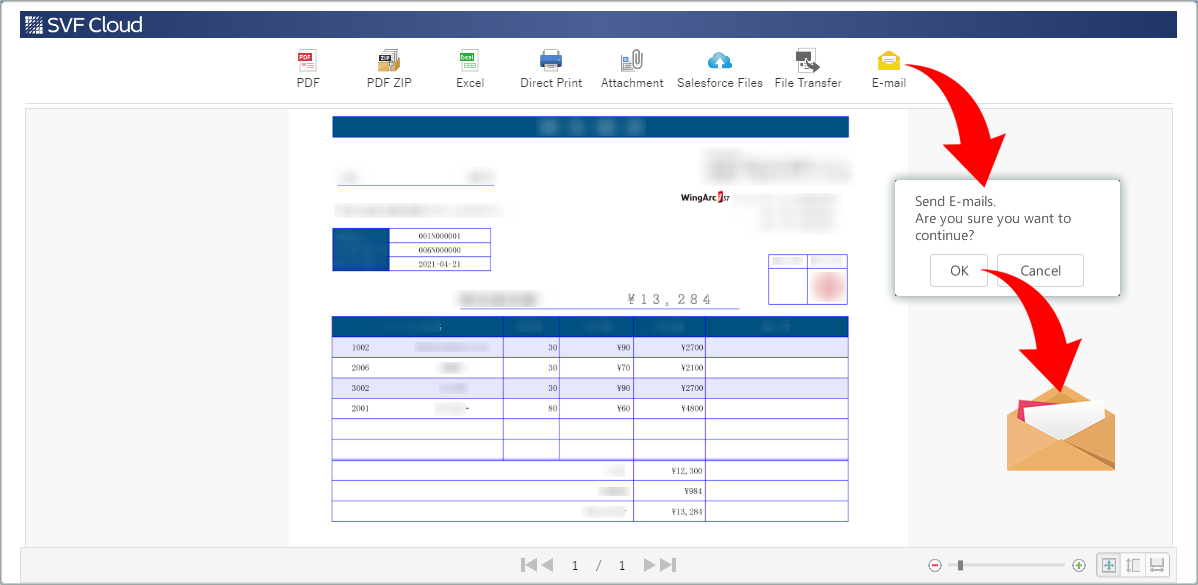
When clicking the Email icon on the preview screen and then the OK button on the transmission confirmation screen, an email will be sent according to the SVF button settings.
 |
Caution
The maximum file size for a forms that can be attached is 5MB. If the maximum size is exceeded, an error will occur.
If an error occurs in the destination mail server, the server will retry sending the email for up to 60 minutes after clicking the print button.
Set DNS
It is recommended to set SPF (Sender Policy Framework) in the sender's DNS. If it is not set, transmission errors may occur or the email may be classified as spam at the destination.
Add "include:spf.wingarc.smtps.jp" to the SPF record.
v=spf1 mx include:spf.wingarc.smtps.jp ~all
Set SVF buttons
On the  SVF Button Settings screen of the SVF Cloud Manager, set the following.
Setting item | Setting |
|---|---|
SVF Button Information - | In the list of actions, select |
After selecting  , set details such as recipient address and body text of an email to be sent. If any of the required fields are not specified, the OK button on the setting screen will not be enabled.
Setting item | Setting |
|---|---|
Sender | Select from the following.
|
Recipient | Specify it from the Salesforce fields (the data type is text or email) where the email address of the recipient is entered. An error will occur during transmission in the following cases.
|
CC, BCC | Click the Edit button to add. Up to 10 email addresses can be set for each Cc and Bcc. If more than 10 email addresses are set, an error will occur when sending the email.
*1 When Generate an error if the Salesforce field has no value has been cleared, no error will occur even if the value of the field is empty or null. |
Email Template | Specify a template for subject and body. The text version and HTML version can be specified for body. If you specify both, the text will be displayed in a format that matches the recipient's environment. Salesforce email templates can also be used. However, the email templates must meet the following conditions:
|
Caution
When you have changed the existing SVF button settings, you need to create the print button again.
Reference
The above are the minimum settings required to attach a form to an email and print it. See "2. Set SVF button in Sandbox environment" for common settings regardless of output method.
Optional settings
Configure the settings on SVF Cloud Manager. Go to the SVF Button Settings screen - SVF Button Information -  - Settings screen.
Output PDF file with document security enabled
You can specify it when the form layout is an XML file.
This restricts operations on PDF files.
Setting item | Setting |
|---|---|
PDF tab - PDF Security Options | On (For details on each setting, see "Advanced setting items of the SVF button") |
Universal Connect/X
Configure the settings in the Universal Connect/X to send an output file via email. For details on the settings, see "4.3.1. Operations and settings in Job" in "Universal Connect/X Administrator Guide".