Output the same image files from more than one record
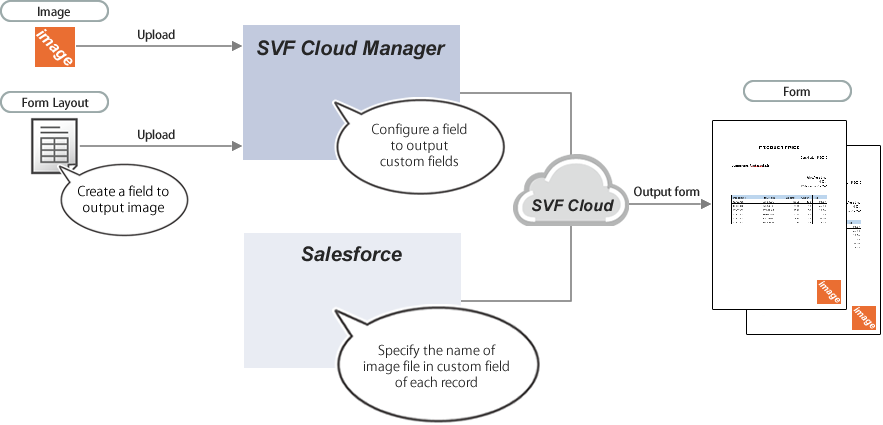
Upload the image to SVF Cloud Manager and specify the name for the image file in the custom field in the Salesforce record.
This is useful to output an image to multiple records, because you need to upload the image file only to SVF Cloud Manager instead of each record.
 |
Notes
This feature is only available in SVF Cloud for Salesforce.
It is necessary to upload the image for each tenant where the form is output.
If the image is not uploaded or the file name of the image is incorrect, the form will not be output.
When outputting multiple records, if only one record has the incorrect setting related to the image, the entire form will not be output.
Restrictions
Images in the following formats can be output.
BMP
JPEG
PNG
GIF
TIFF (PDF file only)
For the maximum file size for images, access the following page and see "Notes and Restrictions" - "SVF Cloud for Salesforce".
https://repo.svfcloud.com/manual/release/en/manager/index.html
Log in to SVF Cloud Manager.
Click
 Resource to open the resource management screen.
Under the "resource" folder, select the folder to upload images.
Click
 - Upload, and select and upload the file on the selection screen.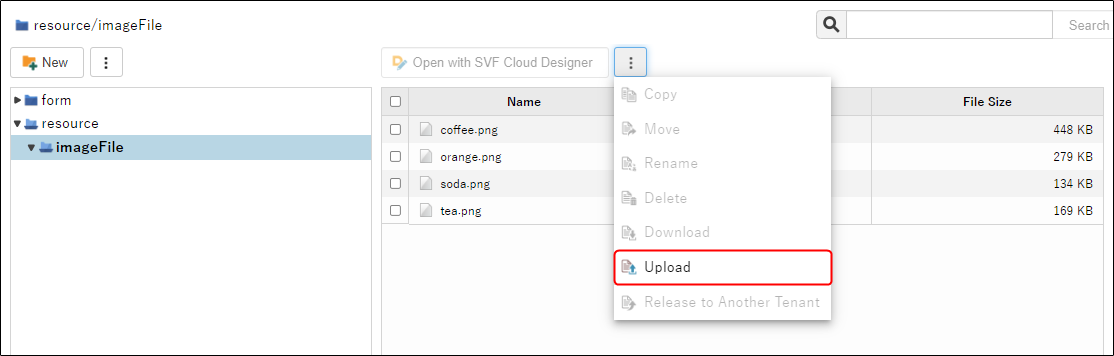
Create a custom field in Salesforce. For details, see "Create a custom field in Salesforce".
Note that you need to select "Text" for the data type.
Specify the file name of the image to be output as the value of the created custom field.
If you uploaded the image to a folder under the "resource" folder, specify the folder name as well. For example, if you want to output "resource/imageFile/coffee.png" on the
Resource screen, specify "imageFile/coffee.png" in the custom item.With the form layout creation tool, create a field in the form layout, to which the image is output.
For SVF Cloud Designer
Create a field to output the image, and set its properties. For details, see "Create an image output field in SVF Cloud Designer".
For Microsoft Excel or Microsoft Word
Create an image field to output a custom field.
Upload the form layout, and set the SVF button to create a print button. For details, see "Output forms".