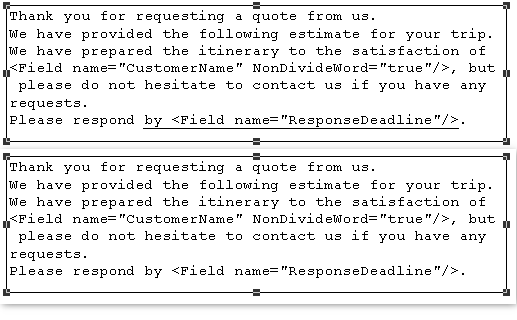
Decorate text string in text frame
The values initially set in properties are the default setting of the string format in a text frame. Use the Edit string dialog to change the decoration settings, such as font, font size and text color, for a part of the text in the text frame.
This section describes the procedures of setting decorations for the typed text, restoring the text decorations to the default, and restoring the underline and strike-through decorations to the default.
Prerequisite
A text frame has been placed.
Procedure
Set decoration for a typed text
Select the text frame and click the ... button in the right edge of the String field in Property editor.
The Edit string dialog appears.
Select the text to specify decoration settings in the text box of the Edit string dialog.
Configure settings in the Text tab and the Underline, Strike-through line tab.
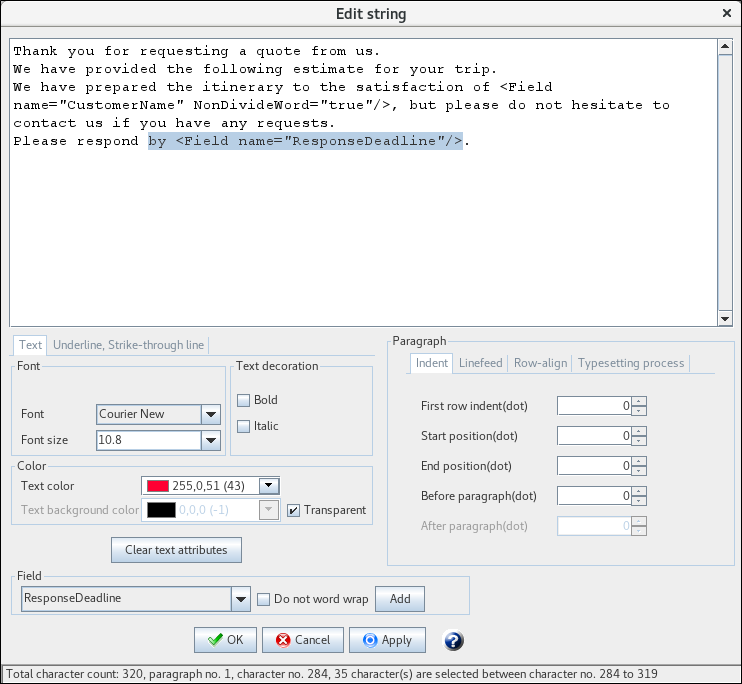
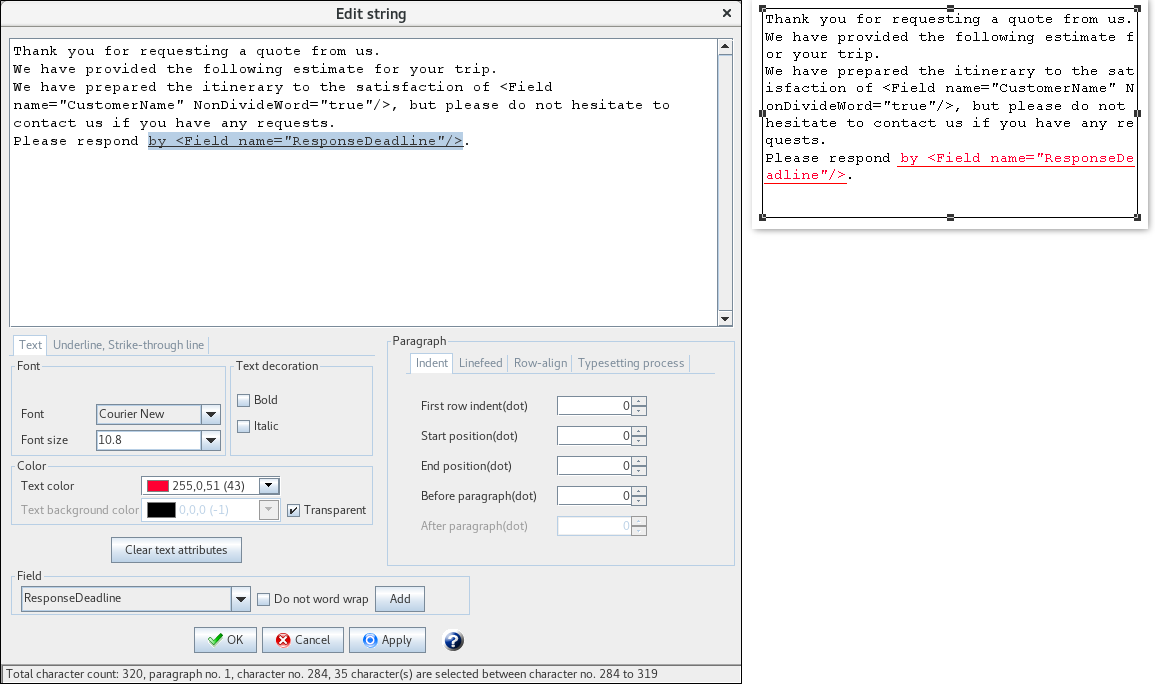
Click the Apply button to reflect the settings to the text frame on the form without closing the Edit string dialog.
Click the OK button to close the Edit string dialog and reflect the settings to the text frame on the form.
Click the Cancel button to close the Edit string dialog and discard the settings.
Reflecting the settings to the text frame on the form without closing the "Edit string" dialog
Reference
If you select the Make text background color transparent check box after specifying a color in Text background color, the first color in the palette color is used as the text background color.
When you change the format of the tag with the referenced field embedded, that format is reflected to the output string.

Restore the decoration setting for text to default
Select the text frame and click the ... button in the right edge of the String field in Property editor.
The Edit string dialog appears.
In the text box of the Edit string dialog, select a text string you want to restore to its default.
Click the Clear text attributes button.
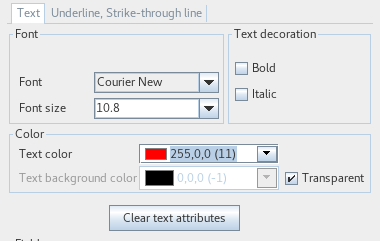
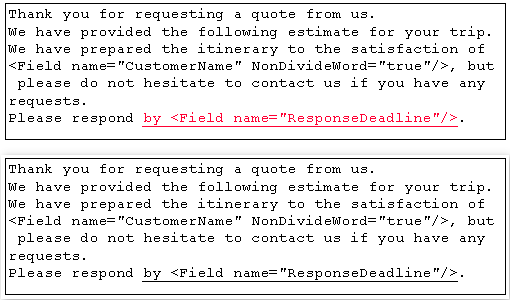
Text decoration settings of the selected string will be restored to defaults.
Example of changing the string format (upper) and example of restoring it to its defaults (lower)
Restore the decoration settings for underline/strike-through line to default
Select the text frame and click the ... button in the right edge of the String field in Property editor.
The Edit string dialog appears.
In the text box of the Edit string dialog, select a text string you want to restore to its default.
Click the Clear line attributes button.
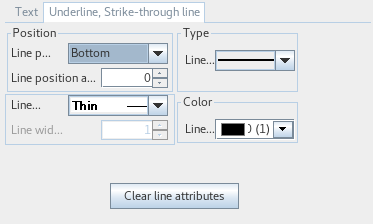
The default value is restored for the underline or strike-through line settings of the string selected.
Example of changing the string format (upper) and example of restoring it to its defaults (lower)