4-8-6 Change legend settings
You can change the following settings in Legend settings in the Chart settings dialog:
Whether to show or hide the legend
Legend display position, border and background styles, and text format
The setting items of Legend settings are the same for both rectangular and circular charts.
For details on the display example of the legend in each chart, see "4-8-1 Chart components".
Legend settings
This section describes the settings in Legend settings.
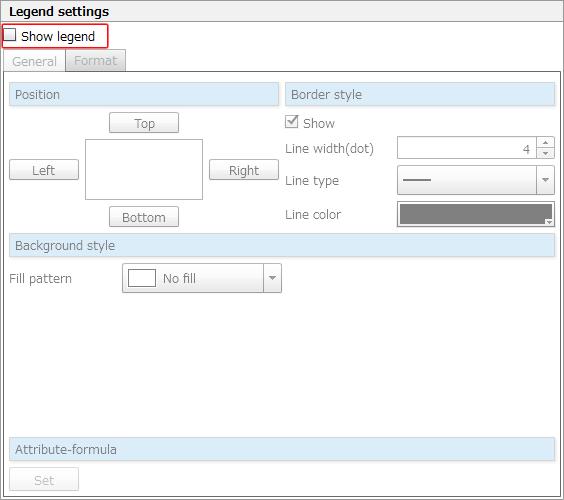
Item | Description |
|---|---|
Show legend | Clear the check box to hide the legend. |
Legend position, style, attribute-formula - "General" tab
The setting items on the General tab are as follows:
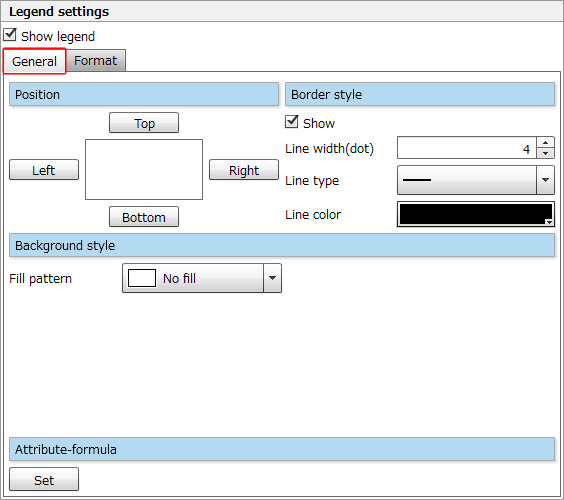
Item | Description |
|---|---|
Position | Specify the position of the legend in the chart area. |
Border style, Background style, and Attribute-formula | Set the border and background styles and an attribute-formula for the legend. The setting procedure is the same as for chart areas. For details, see "Border style", "Background style", and "Attribute expressions" in "4-8-5 Change chart area settings". |
Legend text on the "Format" tab
The setting items on the Format tab are as follows:
Set the font of the text displayed in the legend.
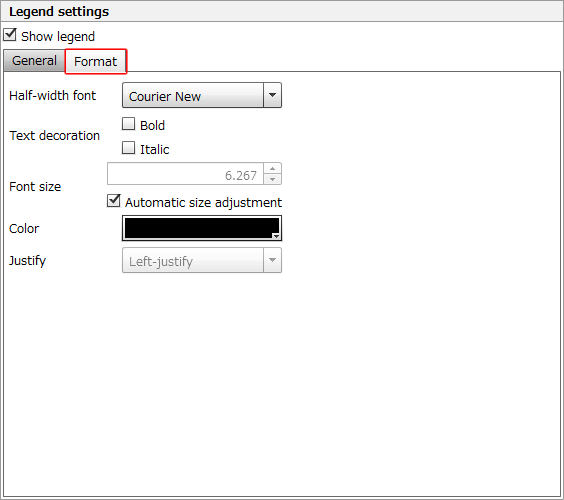
Item | Description |
|---|---|
Full-width font/Half-width font | Specify the full-width or half-width fonts you want to use for the legend. The selectable fonts change depending on the form language. |
Text decoration | Select the check box to use bold or italic text. |
Font size | If you have cleared the check box for Automatic size adjustment, specify the font size within the range of 1 to 96. |
Automatic size adjustment | If you select the check box, the font size is automatically adjusted to match the legend area. |
Color | Select a font color from the color palette. |
Justify | The text alignment appears here. You cannot change this setting. |