Through local PC
You can copy a file such as a form layout and an image managed on the  Resource screen to another tenant through your local PC.
The procedure differs depending on the type of file to be copied.
Form layout
Export/import or Download/upload
(For the difference between exporting and downloading, see "Difference between export/import and download/upload".)
Files other than form layouts
Export/import
You can duplicate a form layout to another tenant by exporting it from the source and importing it to the destination. Resources used in form layouts (embedded forms, link-forms, image files, etc.) can also be exported/imported.
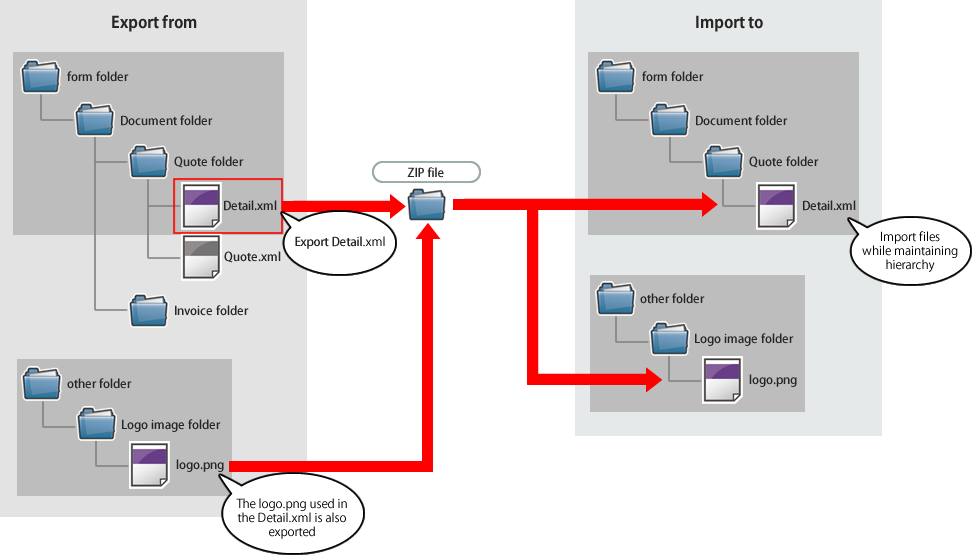
The hierarchy is maintained even when you export/import a form layout file.
For example, if you export "Detail.xml" in the "form/Document/Quotation" folder, the image file "other/Logo Image/logo.png" used in this form layout will also be exported. When you import the exported file, "Detail.xml" will be stored in the "form/Document/Quotation" folder, and "logo.png" will be stored in the "other/Logo Image" folder. If the folder does not exist at the import destination, a new one will be created.
Preparation
Among the access permissions to resources, grant the following permissions (General administrators only).
Export
"Editable" or "View Only"
Import
"Editable"
If you already have the file on your local PC, start from step 5.
Log in to the SVF Cloud Manager of the tenant that has the file to be copied.
Click
Resource.Select the target form layout or folder. You can select up to 1,000 files. The total file size limit for exporting at one time is 30MB.
Click
 - Export Form Definition.Figure 1. For form layouts
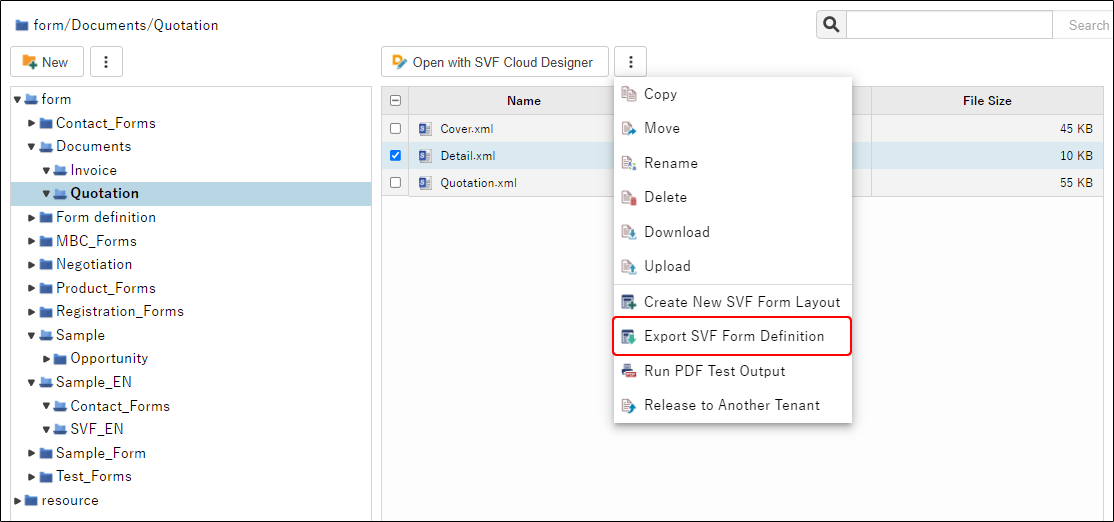 Figure 2. For folders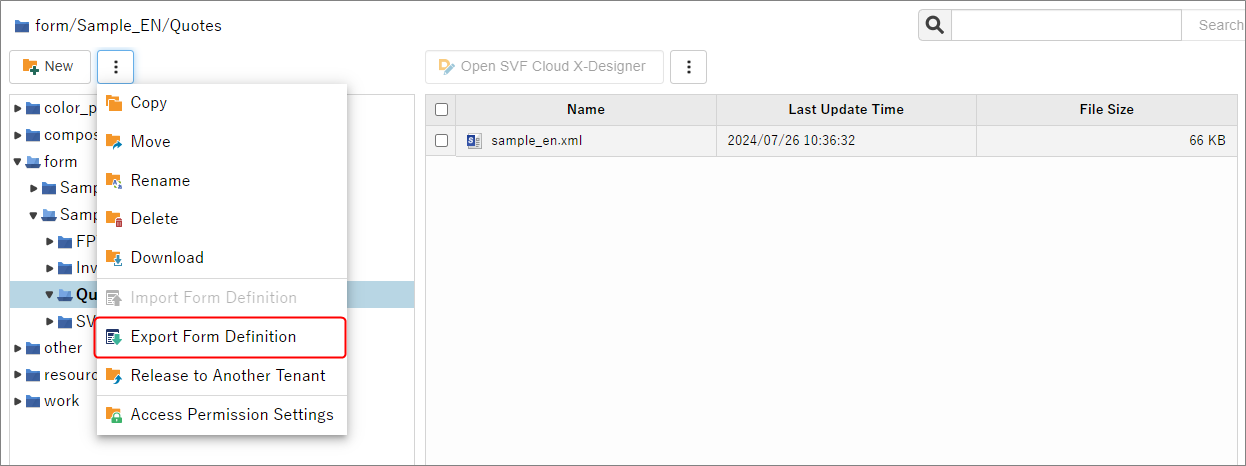
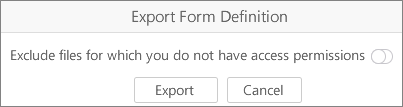
If a general administrator exports resources, select the action to be taken for files with "Hide" access permission, then click the Export button.
On
If the resources to be exported includes files with "Hide" access permissions, those files will be excluded from the export.
Off
If the resources to be exported includes files with "Hide" access permissions, the export process will be interrupted and nothing will be output.
Creation of the export file will begin.
Reference
The export file is created in the background. For details of the background processing, see "Check the status of the background processing".
You cannot create a new export file while an export file is being created.
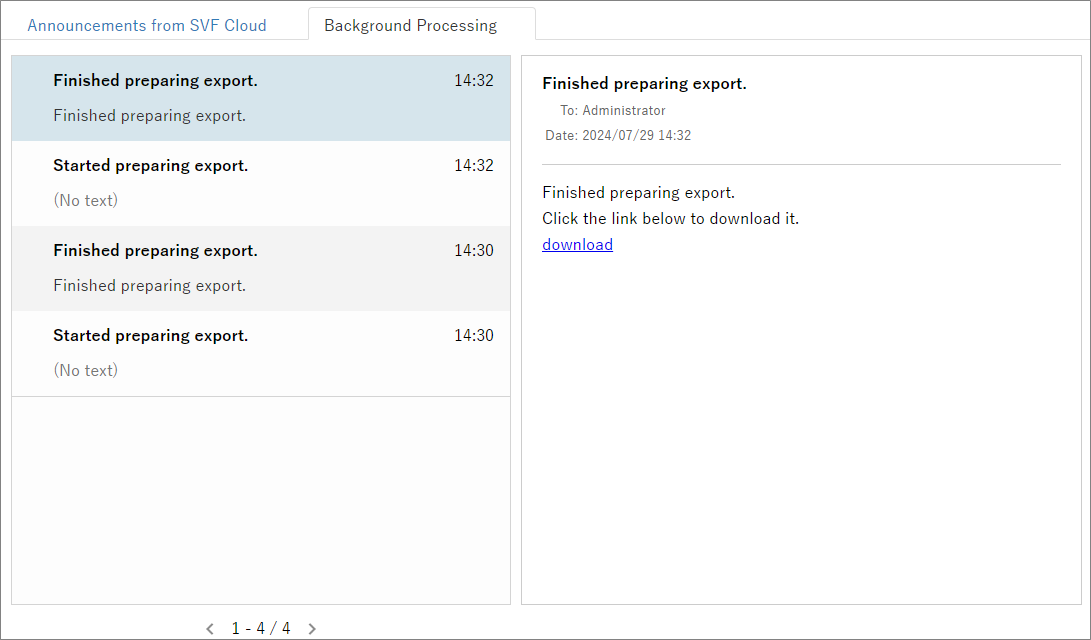
If the export file is successfully created, a notification will appear on the Announcements screen - Background Processing tab. Click the link in the notification to download the export file in the ZIP format.
Log in to the SVF Cloud Manager of the tenant to which you want to copy the file.
Click
Resource.Select the "form" folder and click
- Import Form Definition.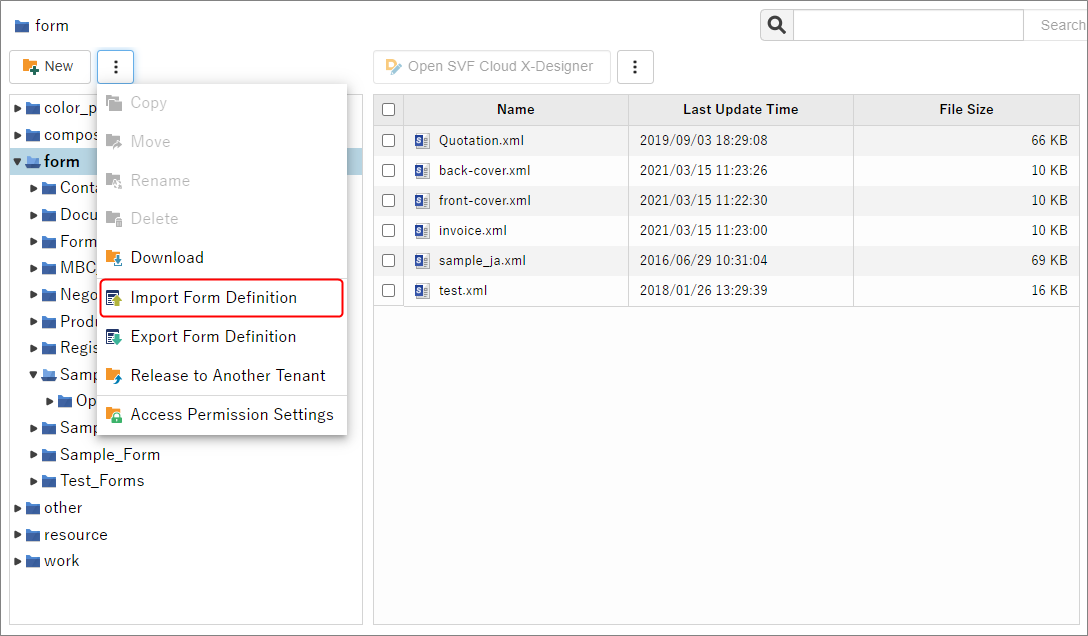
Select the zip file on the selection screen to import it.
Only ZIP files exported from the Resource screen can be imported.
Caution
Overwrite the form layout
If the form layout with the same name already exists in the target layer, it will be overwritten.
If the form layout to be overwritten is used by the SVF button, the new form layout is applied and the form design to be output is also updated.
If a general administrator imports and the resources to be imported includes files in a folder to which the administrator does not have access permissions, a confirmation screen for the import is displayed. If you click Cancel, importing is interrupted and nothing is imported.
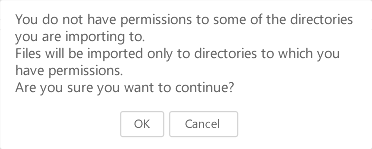
Click the OK button on the completion screen, and when the form layout appears in the hierarchy below the "form" folder, import is complete.
Download/upload
You can copy a form layout and an image file to another tenant by downloading and uploading them.
Preparation
Among the access permissions to resources, grant the following permissions (General administrators only).
Download
"Editable" or "View Only"
Upload
"Editable"
If you already have the file on your local PC, start from step 4.
Log in to the SVF Cloud Manager of the tenant that has the file to be copied.
Click
Resource.Select the target file or folder and click
- Download (multiple files can be selected at a time). The total file size that can be downloaded at one time is up to 500MB.Figure 3. For files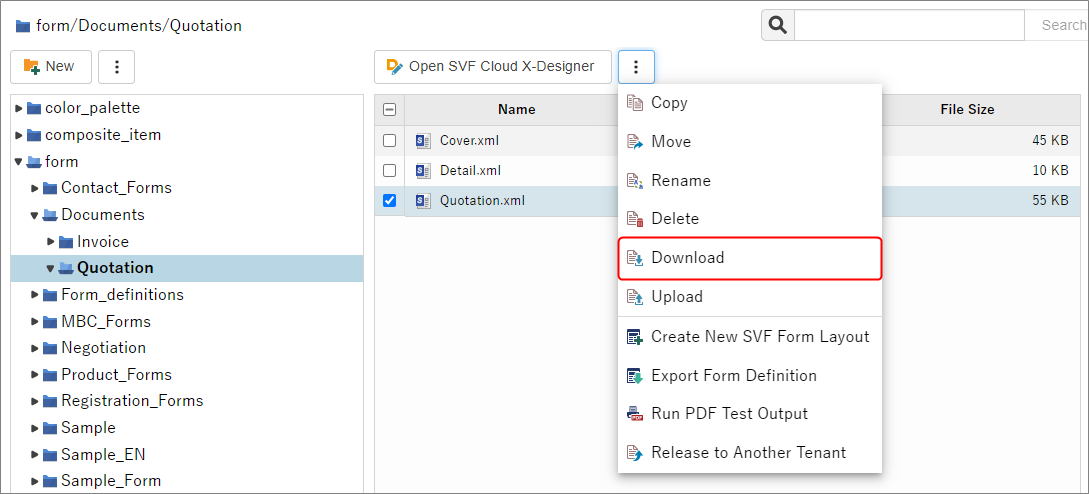 Figure 4. For folders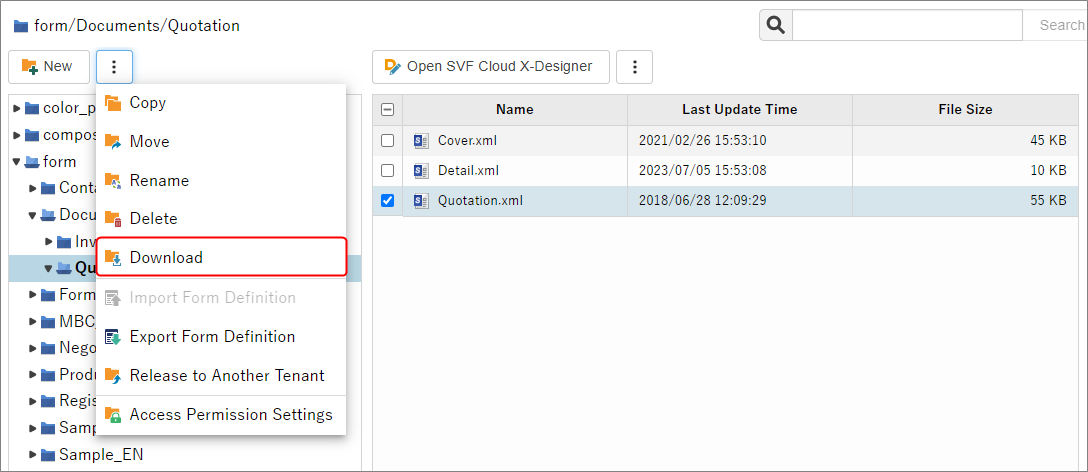
The file is downloaded.
When you select a folder or multiple files, they will be compressed to a zip file and downloaded. Unzip it for later steps.
Log in to the SVF Cloud Manager of the tenant to which you want to copy the file.
Click
Resource.Select a folder to upload the file.
Click
- Upload, and select and upload the file on the selection screen. You need to upload the files one by one.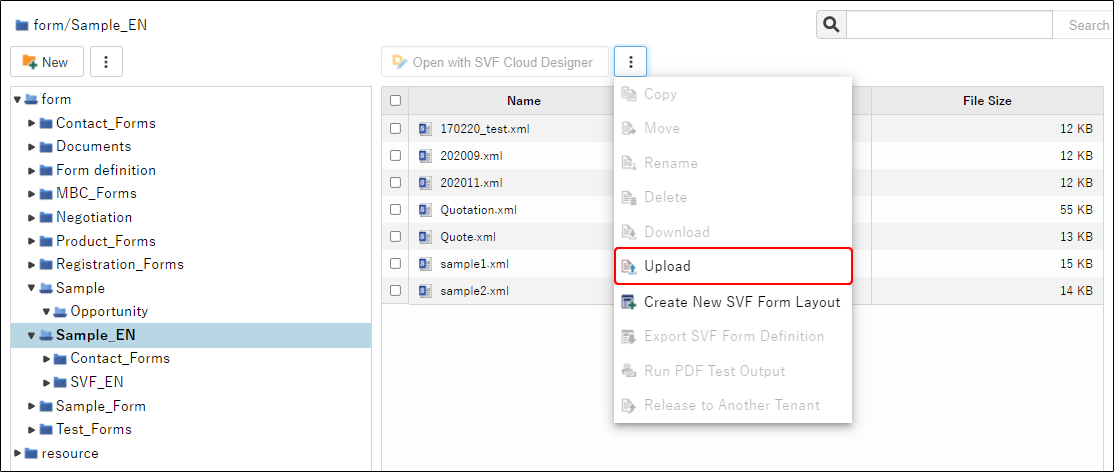
Caution
Overwrite the file
If a file with the same name exists in the folder, a confirmation screen for overwriting is displayed.
If the form layout to be overwritten is used by the SVF button, the new form layout is applied and the form design to be output is also updated.
When the file is displayed in the list, uploading is complete.
Difference between export/import and download/upload
The differences between export/import and download/upload are as follows:
Reference
If you want to duplicate a large number of form layouts, we recommend export/import, which allows you to import them all at once using a ZIP file, without having to wait on screen for the process to complete.
The difference between exporting and downloading
Export | Download | |
|---|---|---|
File types | Form layouts | All files |
What is included in form layout | Resources used in form layout | None (only form layout is downloaded) |
The progress screen appears. |
|
|


The difference between importing and uploading
Import | Upload | |
|---|---|---|
Store resources in any folder |
|
|
Import multiple files |
|
|