Tags
For the form layout of an Excel file, place a tag in a cell to create a form layout.
A tag placed in a cell consists of a tag type, attributes, and values.

You can manually enter a tag, and you can also automatically create a tag and edit the value of an attribute on the screen by using Excel Designer.
The following are the types of tags.
"Required?" column of the table
The meanings of the symbols in the "Required?" column of the table are as follows.
Symbol | Description |
|---|---|
| Required |
| Required for SVF Cloud for Salesforce, not required otherwise |
- | Optional |


Fields
It is a tag to be placed in a cell where you want to output data.
There are the following types. The type is determined by the type attribute.
Text
Outputs character string data as text.
Tag format
<Field name="<name>" type="text" value="<field_path>" sortKey="<sort_key>" sortOrder="<sort_order>" />
Tag information
Attribute | Required? | Description |
|---|---|---|
Name |
| You can specify a field name of 1 to 254 characters in length. The name must be unique within the sheet. You can use alphanumeric characters, kana, kanji, and half-width underscores "_". However, the first character should not be a number or a half-width underscore "_". |
Field path |
| It cannot be edited by the Edit button. Specify the Salesforce field path that is the data source, including the Salesforce object (for example, "Account.Name"). |
Sort key | - | When the field is used as the sort key for the data to be output to the list, specify the sort priority with a value of 1 or more. The lower the value, the higher the priority. If you do not use it as the sort key, specify "0". (The default value is "0".) If the value overlaps with another field, the error check will result in an error. |
Sort order | - | Specify the sort order. (The default is ascending order.)
Sorted in the order of the character code of the text. When editing a tag directly, specify either "ascending" or "descending". |
Tag example (SVF Cloud for Salesforce)
<Field name="text1" type="text" value="Account.Name" sortKey="0" sortOrder="ascending" />
Tag example (SVF Cloud WebAPI, SVF Cloud for ServiceNow)
<Field name="text1" type="text" sortKey="0" sortOrder="ascending" />
Number
Restriction
It cannot be used in SVF Cloud for ServiceNow.
Outputs character string data as value.
Blank strings are output if the data does not match the type.
Tag format
<Field name="<name>" type="number" value="<field_path>" sortKey="<sort_key>" sortOrder="<sort_order>" />
Tag information
Attribute | Required? | Description |
|---|---|---|
Name |
| You can specify a field name of 1 to 254 characters in length. The name must be unique within the sheet. You can use alphanumeric characters, kana, kanji, and half-width underscores "_". However, the first character should not be a number or a half-width underscore "_". |
Field path |
| It cannot be edited by the Edit button. Specify the Salesforce field path that is the data source, including the Salesforce object (for example, "Opportunity.OpportunityLineItems.UnitPrice"). |
Sort key | - | When the field is used as the sort key for the data to be output to the list, specify the sort priority with a value of 1 or more. The lower the value, the higher the priority. If you do not use it as the sort key, specify "0". (The default value is "0".) If the value overlaps with another field, the error check will result in an error. |
Sort order | - | Specify the sort order. (The default is ascending order.)
Sorted in the order of numerical values. When editing a tag directly, specify either "ascending" or "descending". |
Tag example (SVF Cloud for Salesforce)
<Field name="number1" type="number" value="Opportunity.OpportunityLineItems.UnitPrice" sortKey="0" sortOrder="ascending" />
Tag example (SVF Cloud WebAPI)
<Field name="number1" type="number" sortKey="0" sortOrder="ascending" />
Date
Outputs date and time data.
In order to convert data to a serial value and output it, for the cell where you place this field, you must specify the display format of the format settings as "date" or "time" according to the type of the data.
Blank strings are output if the data does not match the type.
Tag format
<Field name="<name>" type="date" value="<field_path>" sortKey="<sort_key>" sortOrder="<sort_order>" />
Tag information
Attribute | Required? | Description |
|---|---|---|
Name |
| You can specify a field name of 1 to 254 characters in length. The name must be unique within the sheet. You can use alphanumeric characters, kana, kanji, and half-width underscores "_". However, the first character should not be a number or a half-width underscore "_". |
Field path |
| It cannot be edited by the Edit button. Specify the Salesforce field path that is the data source, including the Salesforce object (for example, "Opportunity.CreatedDate"). |
Sort key | - | When the field is used as the sort key for the data to be output to the list, specify the sort priority with a value of 1 or more. The lower the value, the higher the priority. If you do not use it as the sort key, specify "0". (The default value is "0".) If the value overlaps with another field, the error check will result in an error. |
Sort order | - | Specify the sort order. (The default is ascending order.)
Sorted in the order of date or time. When editing a tag directly, specify either "ascending" or "descending". |
Tag example (SVF Cloud for Salesforce)
<Field name="date1" type="date" value="Opportunity.CreatedDate" sortKey="0" sortOrder="ascending" />
Tag example (SVF Cloud WebAPI, SVF Cloud for ServiceNow)
<Field name="date1" type="date" sortKey="0" sortOrder="ascending" />
Boolean
Restriction
It cannot be used in SVF Cloud for ServiceNow.
Outputs the data of a check box or logical value. "true" is output if the data of a check box is selected, and "false" if it is cleared.
Blank strings are output if the data does not match the type.
Tag format
<Field name="<name>" type="boolean" value="<field_path>" sortKey="<sort_key>" sortOrder="<sort_order>" />
Tag information
Attribute | Required? | Description |
|---|---|---|
Name |
| You can specify a field name of 1 to 254 characters in length. The name must be unique within the sheet. You can use alphanumeric characters, kana, kanji, and half-width underscores "_". However, the first character should not be a number or a half-width underscore "_". |
Field path |
| It cannot be edited by the Edit button. Specify the Salesforce field path that is the data source, including the Salesforce object (for example, "Opportunity.Field1__c"). |
Sort key | - | When the field is used as the sort key for the data to be output to the list, specify the sort priority with a value of 1 or more. The lower the value, the higher the priority. If you do not use it as the sort key, specify "0". (The default value is "0".) If the value overlaps with another field, the error check will result in an error. |
Sort order | - | Specify the sort order. (The default is ascending order.)
It is sorted in the order of true and false. When editing a tag directly, specify either "ascending" or "descending". |
Tag example (SVF Cloud for Salesforce)
<Field name="boolean1" type="boolean" value="Opportunity.Field1__c" sortKey="0" sortOrder="ascending" />
Tag example (SVF Cloud WebAPI)
<Field name="boolean1" type="boolean" sortKey="0" sortOrder="ascending" />
Image
Inserts an image of the path or ID specified in the data into the cell.

Tag format
<Field name="<name>" type="image" value="<field_path>" stretch="<stretch>" padding="<margin>" verticalAlign="<vertical_alignment>" horizontalAlign="<horizontal_alignment>" />
Tag information
Attribute | Required? | Description |
|---|---|---|
Name |
| You can specify a field name of 1 to 254 characters in length. The name must be unique within the sheet. You can use alphanumeric characters, kana, kanji, and half-width underscores "_". However, the first character should not be a number or a half-width underscore "_". |
Field path |
| It cannot be edited by the Edit button. Specify the Salesforce field path that is the data source, including the Salesforce object (for example, "OpportunityLineItems.Image__c"). |
Stretch | - | The image is expanded/shrunk to fit the size of the cell. At this time, specify whether to keep the aspect ratio of the image. (The default is "Keep aspect ratio".)
For editing the tag directly, specify either "uniform" or "fill". |
Margin | - | Specify the margin for the cell from 0% to 49%. (The default value is 10%). |
Vertical alignment | - | Specify the vertical output position in the cell from the following. (The default value is "Middle".)
For editing the tag directly, specify one of "top", "middle", and "bottom". |
Horizontal alignment | - | Specify the horizontal output position in the cell from the following. (The default value is "Center".)
For editing the tag directly, specify one of "left", "center", and "right". |
Tag example (SVF Cloud for Salesforce)
<Field name="image1" type="image" value="OpportunityLineItems.Image__c" stretch="uniform" padding="10%" verticalAlign="middle" horizontalAlign="center" />
Tag example (SVF Cloud WebAPI, SVF Cloud for ServiceNow)
<Field name="image1" type="image" stretch="uniform" padding="10%" verticalAlign="middle" horizontalAlign="center" />
Barcode
Generates a barcode from the string data and inserts it into the cell.
If the data includes a decimal part, a barcode is not output.

Tag format
<Field name="<name>" type="barcode" value="<field_path>" symbol="<type>" padding="<margin>" verticalAlign="<vertical_alignment>" horizontalAlign="<horizontal_alignment>" />
Tag information
Attribute | Required? | Description |
|---|---|---|
Name |
| You can specify a field name of 1 to 254 characters in length. The name must be unique within the sheet. You can use alphanumeric characters, kana, kanji, and half-width underscores "_". However, the first character should not be a number or a half-width underscore "_". |
Field path |
| It cannot be edited by the Edit button. Specify the Salesforce field path that is the data source, including the Salesforce object (for example, "OpportunityLineItems.barcode__c"). |
Type |
| Specify a barcode type from the following.
For editing the tag directly, specify one of "ean8", "ean13", "codabar", "code39", "itf", and "qr_model2". |
Margin | - | Specify the margin for the cell from 0% to 49%. (The default value is 10%). |
Vertical alignment | - | Specify the vertical output position in the cell from the following. (The default value is "Middle".)
For editing the tag directly, specify one of "top", "middle", and "bottom". |
Horizontal alignment | - | Specify the horizontal output position in the cell from the following. (The default value is "Center".)
For editing the tag directly, specify one of "left", "center", and "right". |
Error correction level | - | This can be specified for QR code model 2. Specify the error correction level of the QR code from the following. (The default value is "H (30%)").
For editing the tag directly, specify one of "l", "m", "q", and "h". |
Version | - | This can be specified for QR code model 2. You can specify 1 to 40 as the QR code version. (The default is "auto") If you specify "auto", the system automatically selects the version depending on the data. |
Tag example (SVF Cloud for Salesforce)
<Field name="barcode1" type="barcode" value="OpportunityLineItems.barcode__c" symbol="ean13" padding="10%" verticalAlign="middle" horizontalAlign="center" />
Tag example (SVF Cloud WebAPI, SVF Cloud for ServiceNow)
<Field name="barcode1" type="barcode" symbol="ean13" padding="10%" verticalAlign="middle" horizontalAlign="center" />
List
To output data as details, this tag is used to specify the output range of the details.
The list enables you to output multiple lines and sort the items in the list. (In the figure below the tag description is simplified for clarity.)
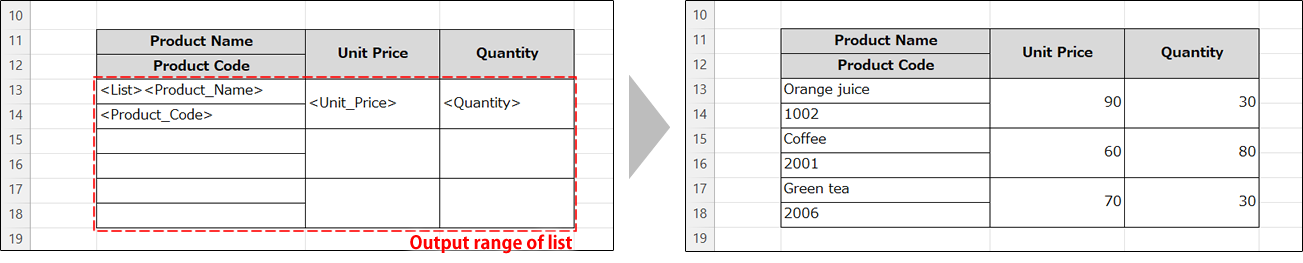
Only one list can be created on a sheet.
The list has the following types.
The output range is expanded downward according to the number of detail items.
The output range of details is fixed.
Extended List
The range is expanded downward according to the number of detail items.
The following information placed in the first row of the output range will be copied to the second and subsequent rows.
Static text
Cell format setting
Formula
Row numbers inside the formula are not adjusted. If you want to change the value for each row, you must also create a table when you create the list, and use the table columns in the formula.
Conditional format
Row numbers included in the condition are not adjusted.
Data validation
Row numbers specified in the data are not adjusted.
Sparkline
The row number in the data range is adjusted depending on added row(s).
Caution
A row is added during expansion of the output range.
So, if there is a table, pivot table, formula, or other item alongside or below the output range, a loading error may occur, or the layout may be changed due to the addition of rows.
Tag format
<List name="<name>" extend = "true" recordRows="<number_of_repeating_rows>" />
Tag information
Attribute | Required? | Description |
|---|---|---|
Name |
| It is the name of a list. CautionDo not change the value (SVFCloud_List_1) automatically set by Excel Designer. It will not work properly. |
Number of repeating rows | - | Specify how many rows are allocated for outputting a list of details. If the data in the details overflows from the output range, follow the settings for "when overflowed". |
Tag example
<List name="SVFCloud_List_1" extend="true" onOverflow="error" recordRows="2" />
Fixed List
Details are output in the range specified in advance.
Keep the following in mind when designing a fixed list.
All rows in the output range must be the same height.
If you want to set the display format and the like in a detail cell, you need to set it in the target cell within the output range in advance. (Unlike the extended list, the settings in the first row are not copied.)
Tag format
<List name="SVFCloud_List_1" extend="false" onOverflow="<when_overflowed>" recordRows="<number_of_repeating_rows>" />
Tag information
Attribute | Required? | Description |
|---|---|---|
Name |
| It is the name of a list. CautionDo not change the value (SVFCloud_List_1) automatically set by Excel Designer. It will not work properly. |
When overflowed | - | Specify the operation when data overflows from the specified output range. (The default value is "error").
For editing the tag directly, specify one of "error", "cut", and "new_sheet". |
Number of repeating rows | - | Specify how many rows are allocated for outputting a list of details. If the data in the details overflows from the output range, follow the settings for "when overflowed". |
Tag example
<List name="SVFCloud_List_1" extend="false" onOverflow="error" recordRows="2" />
Form
It is a tag to specify the sheet to output the data overflowing from the range of a fixed list.
This tag works if you insert it into any cell in a sheet as long as it is an empty cell. When you output a form, this tag will be deleted and the cell will be empty.
In the following cases, an error will occur when the form is output.
The specified sheet does not exist.
There is a difference in the list design between the source sheet and the destination sheet.
Tag format
<Form linkSheet="<link_sheet>" />
Tag information
Attribute | Required? | Description |
|---|---|---|
Link sheet |
| Specify the name of the sheet where the overflowing data will be output. |
Tag example
<Form linkSheet="Sheet2" />