Display grid in form window
The grid is a structure made up of auxiliary lines or points displayed in a lattice pattern on a window. You can configure settings to force items to be aligned with the grid. You can show or hide the grid as necessary.
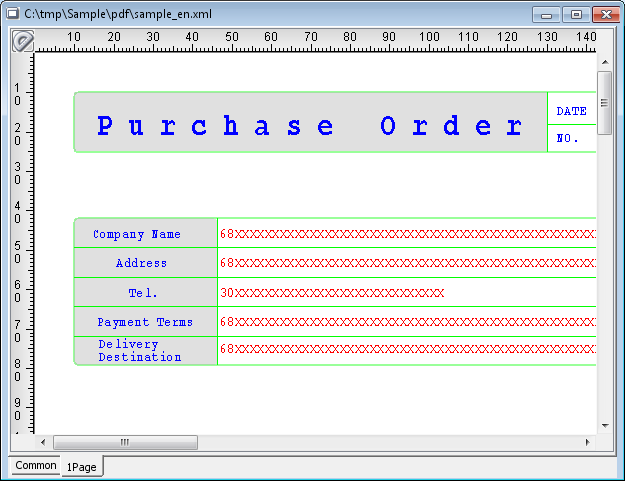
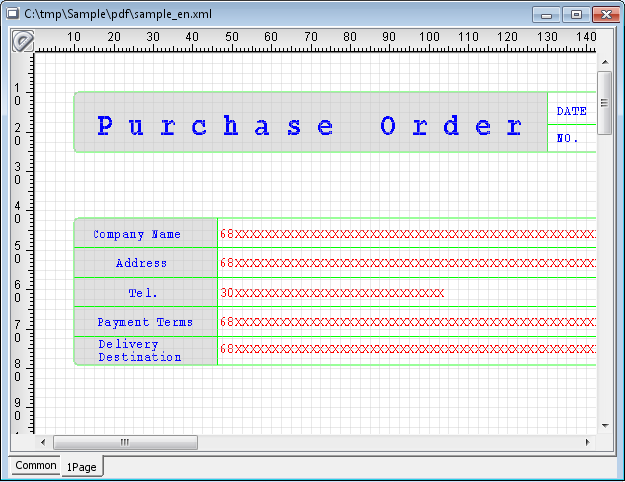
Procedure
To show or hide the grid
SelectView - Grid.
The grid show or hide setting switches every time you select this menu. A check mark appears on Grid in View while the grid is displayed.
To change the grid shape
Select "Point" or "Line" from View - Grid shape.
To set the grid
Click Grid settings located at the right edge of Form Designer window in the initial state.
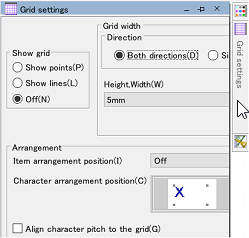
The Grid settings window is displayed.
Reference
The Grid settings window is also displayed when you select Option - Grid settings.
You can change the display state of the Grid settings window among tab display, docked display, and floating display as necessary. For details on how to change the display, see "Redisplay closed window in Form Designer".
Configure various settings for the grid including the grid type and widths and whether to align items with the grid.
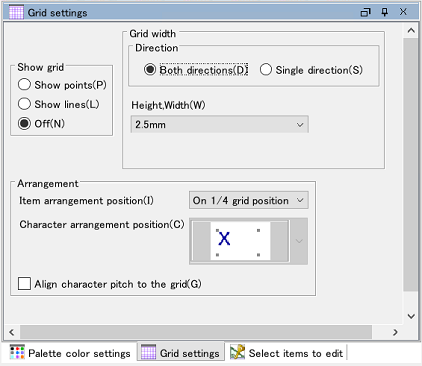
Reference
Change the arrangement position of items
You can also change the position of items with the Grid arrangement setting box on the toolbox.
Every time you click the box, the mode changes as follows:

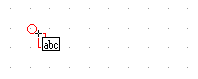
If Grid arrangement is other than "Off", the alignment target position of an item appears as a red circle when placing the item.
Initial value of grid settings
Grid settings are saved in each XML form file. If you save the settings as default values in Form Designer, select File - Save default settings.
To return to the factory settings, select View - Initialize grid settings.
When you set Item arrangement position to "On grid position only", "On 1/2 grid position" or "On 1/4 grid position" and select an item on the form window, the coordinate position is recalculated when the item is selected, moving the item to the position set in Item arrangement position.