Features of option buttons used to set attribute-formulas
This section describes the features of option buttons provided in the Attribute-formula setting dialog.
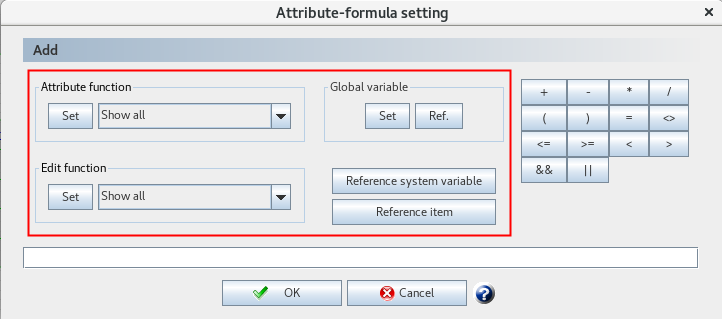
Set attribute functions
The attribute functions that can be used in attribute-formulas are classified according to the intended use.
Reference
For details of available function types and individual functions, see "Attribute functions".
Click the selection list at the right side of the Set button in Attribute function to select the function type.
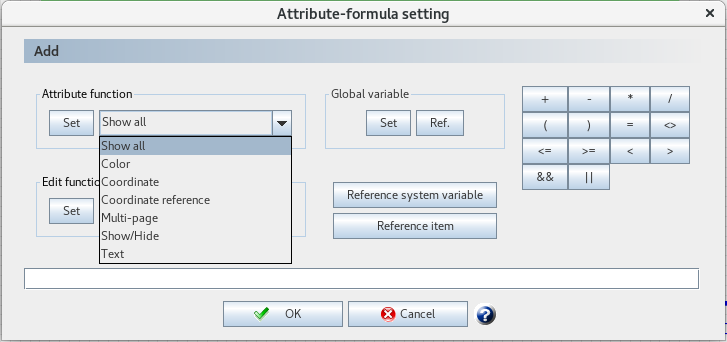
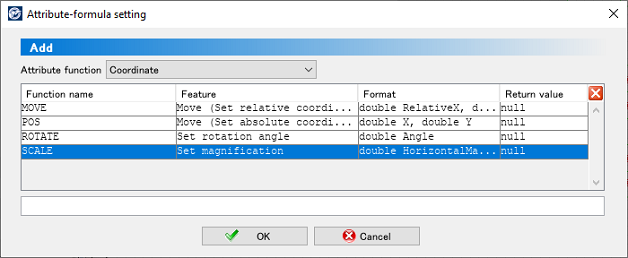
A list of functions included in the selected type appears. Double-click the function you want to specify.
The function is entered in the setting field.
Setting edit functions
In attribute-formulas, you can use edit functions common to calculation-formulas and edit-formulas.
The edit functions that can be used in attribute-formulas are classified according to the intended use.
Reference
"Statistical functions" and "conditional functions" cannot be used in edit functions in Attribute-formula.
For details of available function types and individual functions, see "Edit functions".
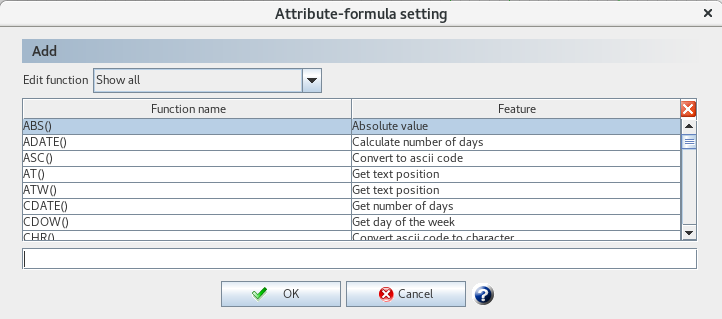
Click the selection list at the right side of the Set button in Edit function to select the function type.
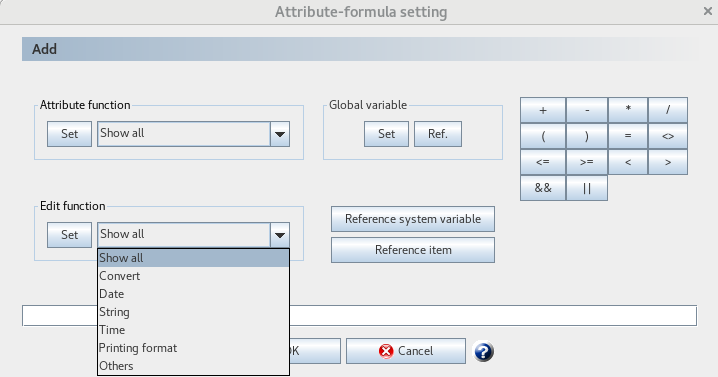
A list of functions included in the selected type appears. Double-click the function you want to specify.
The function is entered in the setting field.
Set global variables
In attribute-formulas, you can use global variables common to calculation-formulas and edit-formulas.
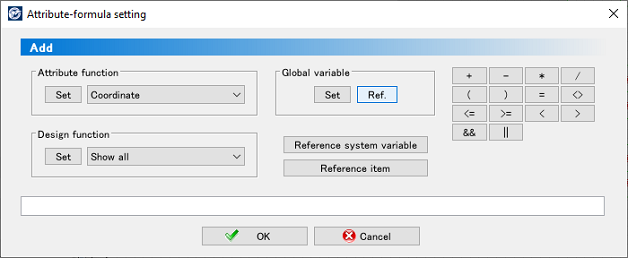
When you click the Set button in Global variable, the Global variable dialog appears, which allows you to set initial values for global variables.
For details of the setting procedure, see "Define a global variable and its initial value".
Reference global variables
You can use the global variables set in Global variable - Set by clicking the Ref. button.
Click the Ref. button in Global variable.
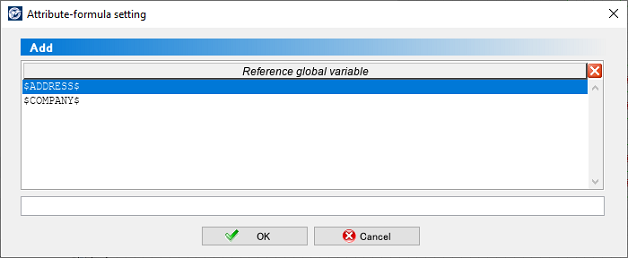
A list of the global variables that have been set appears.
Select and double-click the global variable you want to use.
The global variable is entered in the setting field.
Reference system variables
In attribute-formulas, you can use system variables common to edit-formulas.
For details of the setting procedure, see "Reference system variable (available only for edit-formulas and attribute-formulas)".
Click the Reference system variable button.
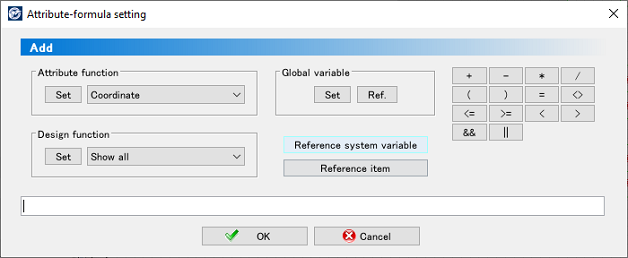
Click the selection list and select the type of system variable.
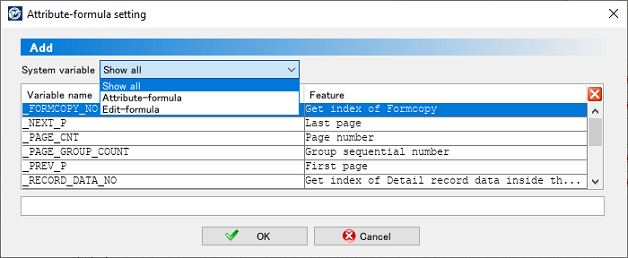
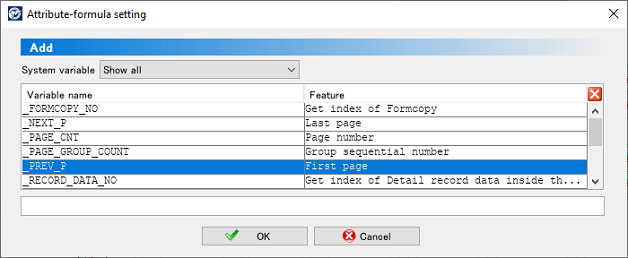
A list of system variables included in the selected type appears. Double-click the system variable you want to specify.
The system variable is entered in the setting column.
Restriction
When the mode of the VrSetForm function is 1, attribute-formulas including the following system variables are disabled:
_PREV_P
_NEXT_P
_PAGE_GROUP_COUNT
_TOTAL_PAGE_COUNT
_TOTAL_PAGE_CNT
Reference items
You can use the Reference item dialog to enter item names to be referenced in the attribute-formula.
Click the Reference item button.
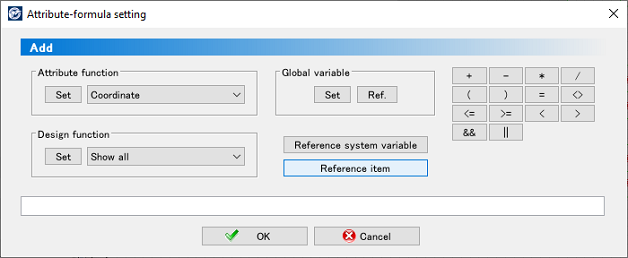
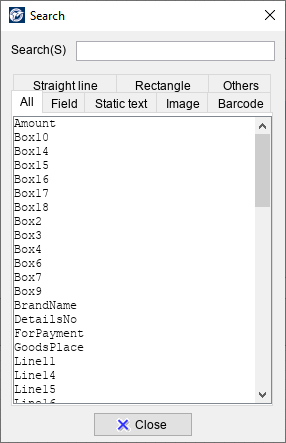
The Search dialog appears, letting you browse through the items that are placed in the form window.
A list of placed item names appears. Double-click the item name you want to specify.
The item name is entered in the setting field.
Reference
In the Print-control-condition dialog, the Reference item button changes to the Reference field button, and only field, barcode, and GS1 databar items are listed in the Search dialog.
You can also enter item names to be referenced in the attribute-formula by right-clicking the items placed in the form window, and selecting the option that appears in the menu.
Display descriptions
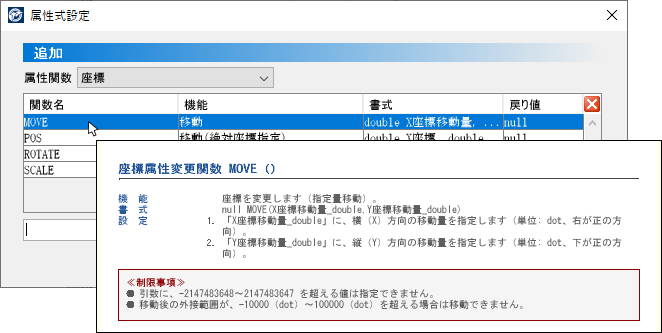
You can display (pop-up) descriptions of the functions and system variables that appear in the Attribute-formula setting dialog. You can use the descriptions while displaying the attribute function list, edit function list or system variable list.
When a function list appears, place the mouse pointer over a function while pressing CTRL.
The description of the function selected by the pointer pops up.
Restriction
Description messages (a pop-up window that shows description of a feature or variable on which the mouse pointer is placed) do not appear if you are editing a form file created in languages other than Japanese.