Create a field using the field definition of another file
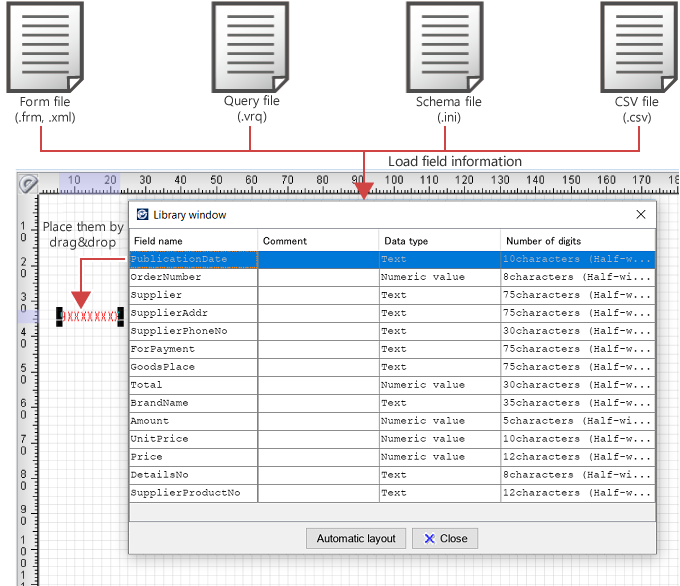
If files containing field definitions such as XML form files, query form files (.vrq), schema files (.ini), or library files (.lib) already exist, the "Library window" feature allows you to create fields on another form using such files. You can also create a CSV file that defines field information, and create fields by reading CSV data.
By selecting a field in Library window and dragging and dropping it to a new form, you can greatly reduce the time needed for configuring field property settings. You can also automatically place all fields in the file on the form.
Reference
A schema file is the file used in the related product, Universal Connect/X.
A library file (.lib) is the file created with the previous versions of SVF Designer. It contains form items in a reusable format.
Prerequisite
To automatically place fields in a file, Size must be "A4" and Page orientation must be "Portrait".
The file to be used must be stored on SVF Cloud.
If it is not stored on SVF Cloud, upload it to the "work" folder on the
 Resource screen of SVF Cloud Manager.
Procedure
To place fields in a file manually
Select View - Show library window.
The Select library file dialog appears.
Select a file and click the Open button.
The Library window dialog appears. The Library window dialog displays a list of field information saved in the selected file.
In the Library window dialog, select a field and drag and drop it onto a form.
The field is placed.
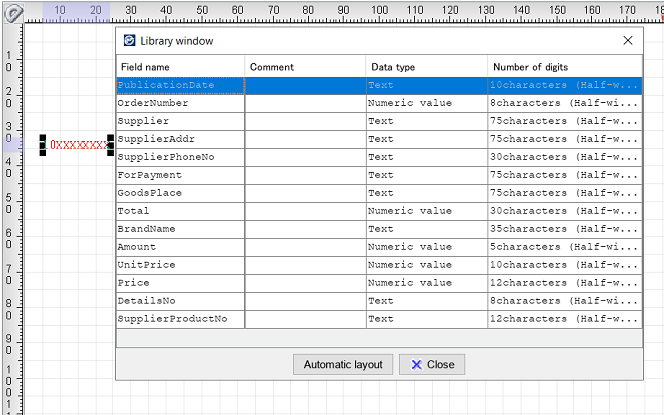
After placing necessary fields, click the Close button in the Library window dialog.
To place fields in a file automatically
Select View - Show library window.
The Select library file dialog appears.
Select a file and click the Open button.
The Library window dialog appears. The Library window dialog displays a list of field information saved in the selected file.
Click the Automatic layout button in Library window.
The Automatic layout settings dialog appears. A list of fields placed in the file appears in the list box.
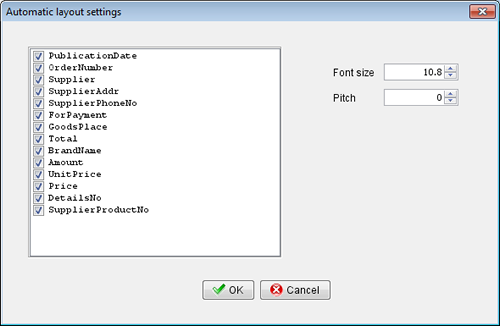
Select the check box of a field you wish to apply automatic layout.
Set Font size and Pitch.
At Font size, specify the font size to be used for printing in points. You can specify the font size in the range of 1 to 96 points.
Restriction
If you use the automatic layout feature of the library window when the form language is Thai, the pitch entry is disabled.
Reference
If you print using a dot matrix printer, characters are printed in a fixed size of 24 dots due to the printer restrictions.
At Pitch, specify the character pitch.
Click the OK button.
The selected fields are placed on the form with the automatic layout being applied.
A "subform" and "record" are automatically created within the form and the fields are placed in the record.
Also, each field name is created as a static text and placed in the subform.
To place fields using a CSV file
Create a CSV file.
Describe field information according to the required format.
When the CSV data is imported, you can place fields on the form window from Library window.
Place fields in Library window by following the procedure in "To place fields in a file manually" or "To place fields in a file automatically".