4-6-7 Repeat to use a set item
Item fields on forms such as the product name, quantity, unit price, amount, and product code are printed repeatedly on multiple lines within a fixed frame of the form. These fields can be displayed by repeating the first row vertically or horizontally by using the repeat item feature instead of arranging them individually.
By using the repeat item feature, you can set field properties only in the repeat item source field.
You can also include newly added fields in an existing repeat item after you set up the repeat item.
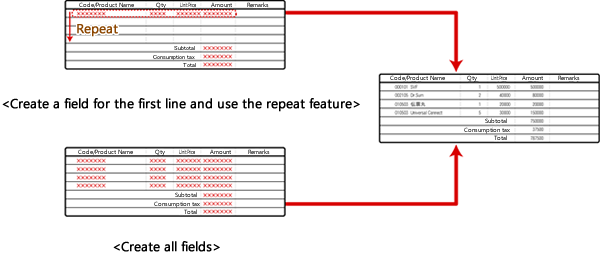
The first row can be used repeatedly instead of placing all the fields individually
This repeat item feature can also be used for barcodes and static text as well as for fields.
This chapter describes the fields as an example.
Configure repeat item settings
Use the following procedure to configure repeat item settings:
Click the
 Create repeat button on the toolbox and move the pointer to the Form Editor.
The pointer changes to
 .
.Select a field to be repeated by dragging the pointer to make a rectangle, referencing the guidelines. You can also select multiple fields and configure repeat item settings.
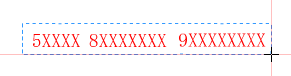
Select a field to be repeated
A repeat item frame and white handles appear in the selected field.
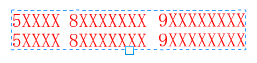
Field is selected
Restriction
2D barcodes, subforms, records, formcopies, charts, and text frames are not subject to repeat items.
Click the
 Item selection mode button on the toolbox and drag the handle below the field.
Drag the handle referencing the guidelines until the number of repeated rows is displayed.

Dragging until the desired number of rows appears
Set each item of the placed repeat item properties with the Property editor.
Restriction
You cannot move repeat items as well as the items included in them to another level of the hierarchy.
Set the repeat item properties
Set the repeat item properties such as the direction, frequency, and pitch of a repeat item.
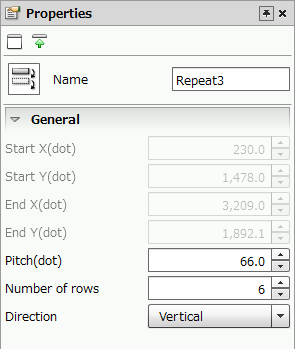
Repeat item properties
Item | Description |
|---|---|
Name | Type a name for the repeat item. By default, it is automatically and sequentially specified from "Repeat1". You can use alphanumeric characters, Kana, Kanji, and underscores (_). The name can be up to 30 bytes in length. Do not use a number for the first character of the name. |
Start X(dot) | The X coordinate of the upper left corner of the repeat item will be displayed. You cannot directly type a numeric value to change this field. |
Start Y(dot) | The Y coordinate of the upper left corner of the repeat item will be displayed. You cannot directly type a numeric value to change this field. |
End X(dot) | The X coordinate of the lower right corner of the repeat item will be displayed. You cannot directly type a numeric value to change this field. |
End Y(dot) | The Y coordinate of the lower right corner of the repeat item will be displayed. You cannot directly type a numeric value to change this field. 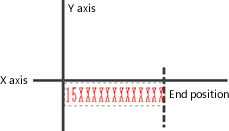 Positional relationship between the start and end points |
Pitch(dot) | Specify the pitch between lines. You can also change the value by clicking the |
Number of rows | Specify the number of rows to be repeated using a value of "2" or greater. Note that the repeat item source field is also included in the number. You can also change the value by clicking the |
Direction | Select the direction in which the field is repeated. |

Adjust the pitch between the rows to be repeated
You must match the pitch of the rows to be repeated with the pitch of row delimiter of the form. Adjust the pitch between the rows to match the pitch of the rows in the form.
Use the following procedure to adjust the pitch between the rows:
Select a repeat item.
Drag the lower edge of the handle displayed at the bottom of the field while pressing CTRL.
You can change the pitch between the rows without changing the number of rows.
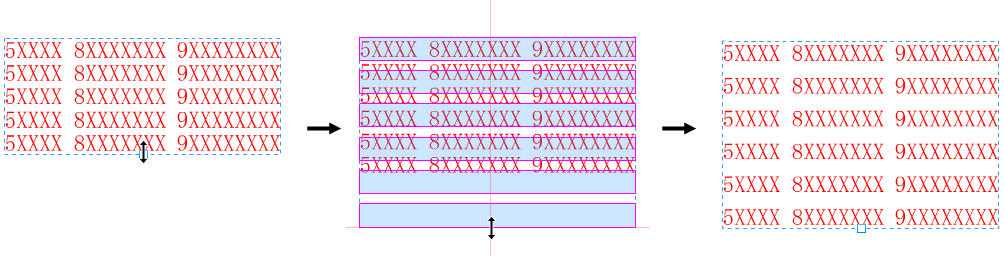
Change the pitch between the rows
Add a field to a repeat item
You can add a field to a repeat item you have already set.
Select a field to be added to a repeat item.
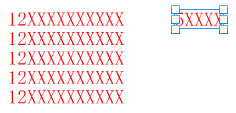
Select a field to be added to a repeat item
Click the
 Items button, and click the
  Append to repeat item button on the Items window.
From the Append to repeat item dialog, select the repeat item to be added and click the OK button.
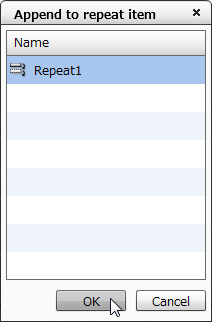
Select a repeat item
The selected repeat item settings are applied.

The field is added to the repeat item
Remove a field from a repeat item
A field can be removed from a repeat item you have already set.
Select a field to be removed from a repeat item.
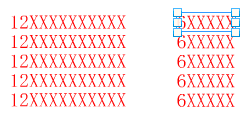
Select a field to be removed from a repeat item
Click the
Items button to display the Items window, and click the  Remove from repeat item button.
The field is removed from the repeat item.
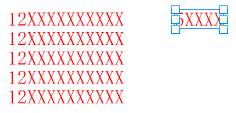
The field is removed from the repeat item
Select the target item of a repeat item
For items that have been set to repeat, operations of the item to be repeated or property changes may occur.
In that case, you can select the item to be repeated.
Select the repeat item, click the
Items button to open the Items window, and click the  Select items to repeat button.
The source field of repeat item is selected.
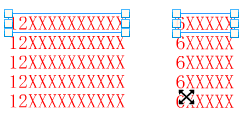
The source field of repeat item is selected