3-1 Preparing to Uninstall
You must delete any print buttons that you created in SVF Cloud for Salesforce before you uninstall the package. Multiple components are associated with user-created print buttons. Therefore, you must delete all of the components associated with the print buttons from all of the Salesforce objects where the buttons were created.
Remove these components in the following order. If you do not follow the specified order, you may not be able to delete the components.
Reference
In steps 1 through 3, if you have not placed print buttons on pages or layouts, skip such steps.
Delete a print button placed on an advanced settings page
From Setup in Salesforce, select Customize for Salesforce Classic or Object Manager for Lightning Experience to open Page Layouts.
Click Edit of the row of the page layout on which the print button is placed.
Figure 1. For Salesforce Classic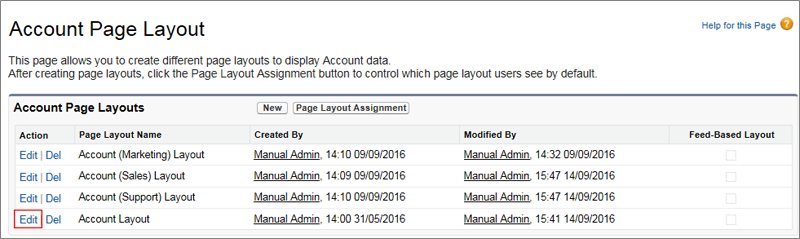 Figure 2. For Lightning Experience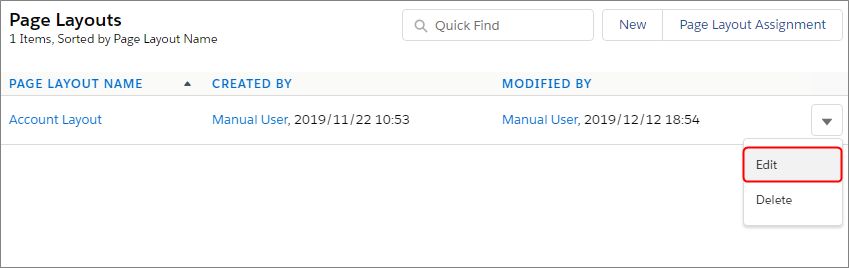
The page for editing the layout appears.
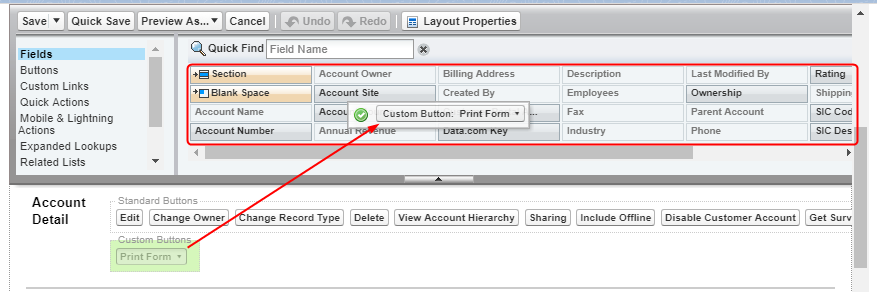
Drag and drop the print buttons placed in the Salesforce Mobile and Lightning Experience Actions area or Custom Buttons area to the palette at the top of the screen.
Reference
Print buttons that have already been placed on the page appear in a lighter color in the palette.

Click the Save button.

Repeat steps 1 through 4 for each Salesforce object that has a print button on its Advanced Settings page.
Delete a print button placed in the related list on an advanced settings page
From Setup in Salesforce, select Customize for Salesforce Classic or Object Manager for Lightning Experience to open Page Layouts.
Click Edit of the row of the page layout on which the print button is placed.
Figure 3. For Salesforce ClassicFigure 4. For Lightning Experience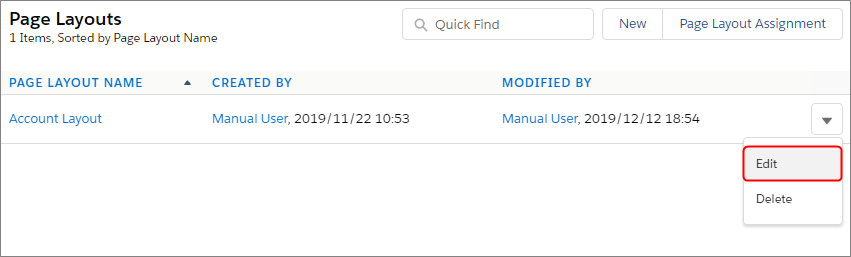
The page for editing the layout appears.
Click the Related List Properties button in the related list where a print button has been placed.

The Related List Properties page appears.
Click the heading area of Button.
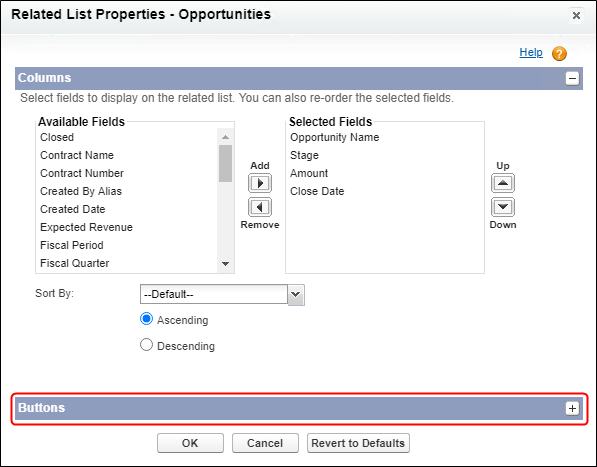
Select the print button from Custom Buttons - Selected Buttons, and click the Delete button.
Delete all print buttons in Selected Buttons.
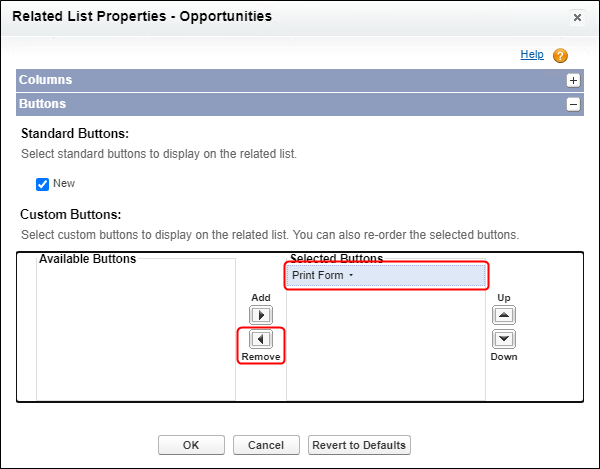
Click the OK button.
Return to the page where you edit the layout.
Click the Save button.
Repeat steps 1 through 7 for each Salesforce object that has a related list with a print button in it.
Delete a print button placed in a search layout
The procedure for removing the print buttons is the same for Search Results and List View.
From Setup in Salesforce, open the following page.
For Salesforce Classic
Open the object where you placed the print button in Customize and open Search Layout.
For Lightning Experience
Open the object where you placed the print button in Object Manager and open List View Button Layout.
In the row of the Search Layout where you placed the print button ("List View" or "Search Results"), click Edit.
Figure 5. For Salesforce Classic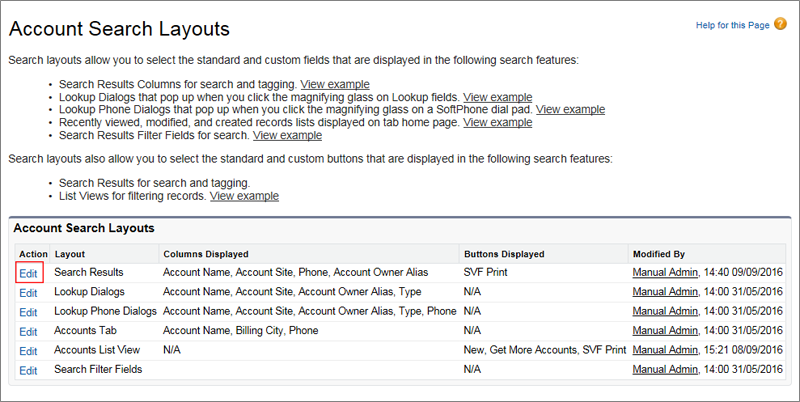 Figure 6. For Lightning Experience
The page for editing the search layout appears.
Select the print button from Custom Buttons - Selected Buttons, and click the Delete button.
Delete all print buttons in Selected Buttons.
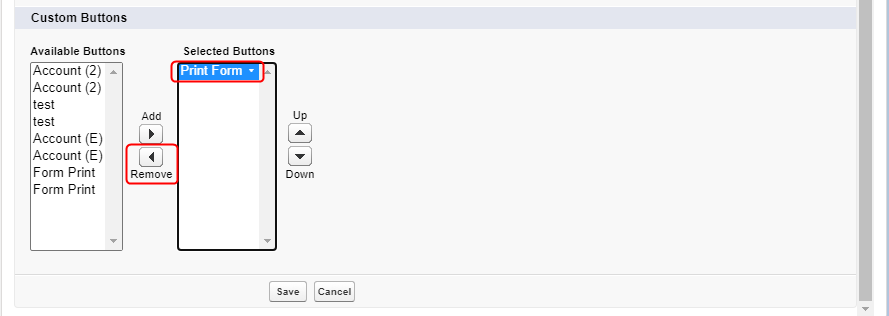
Click the Save button.
Repeat steps 1 through 4 for each Salesforce object that has a print button in its search layout.
Delete detail page button and list button from print button.
From Setup in Salesforce, select Customize for Salesforce Classic or Object Manager for Lightning Experience to open Buttons, Links, and Actions.
Reference
Depending on the selected Salesforce object, Buttons, Links, and Actions may appear as Buttons and Links.
In the row of all print buttons, click Delete.
Figure 7. For Salesforce Classic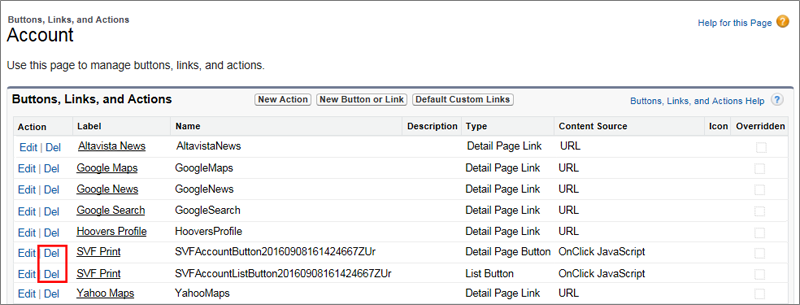 Figure 8. For Lightning Experience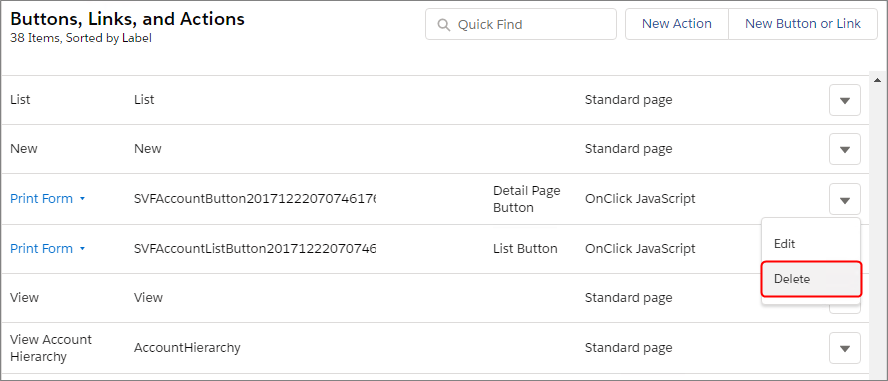
A confirmation message appears.
Click the Delete button.
The detail page buttons and list buttons on the print button will be deleted.
Repeat steps 1 through 3 for each Salesforce object that has a print button.
Delete the Visualforce page for a print button
From Setup in Salesforce, open the Visualforce Pages.
In the row of all print buttons, click Delete.
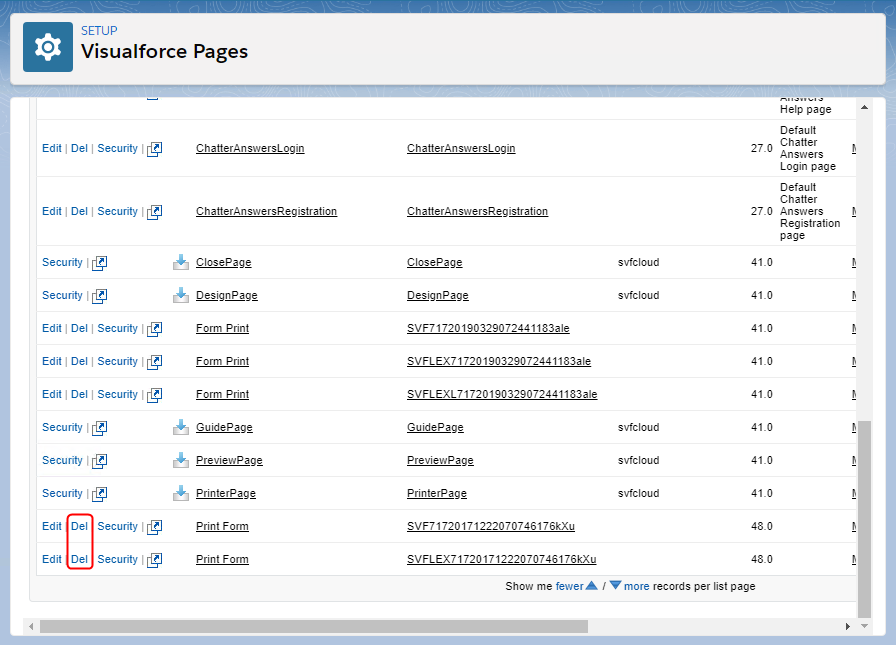
A confirmation message appears.
Click the OK button.
The Visualforce page will be deleted.