Chapter 1. Installation
Start the installation of the SVF Cloud for Salesforce package. The package must be installed individually for each organization that will be using SVF Cloud for Salesforce.
If you upgrade an installed package, the existing package will be overwritten.
Use the following procedure to install SVF Cloud for Salesforce:
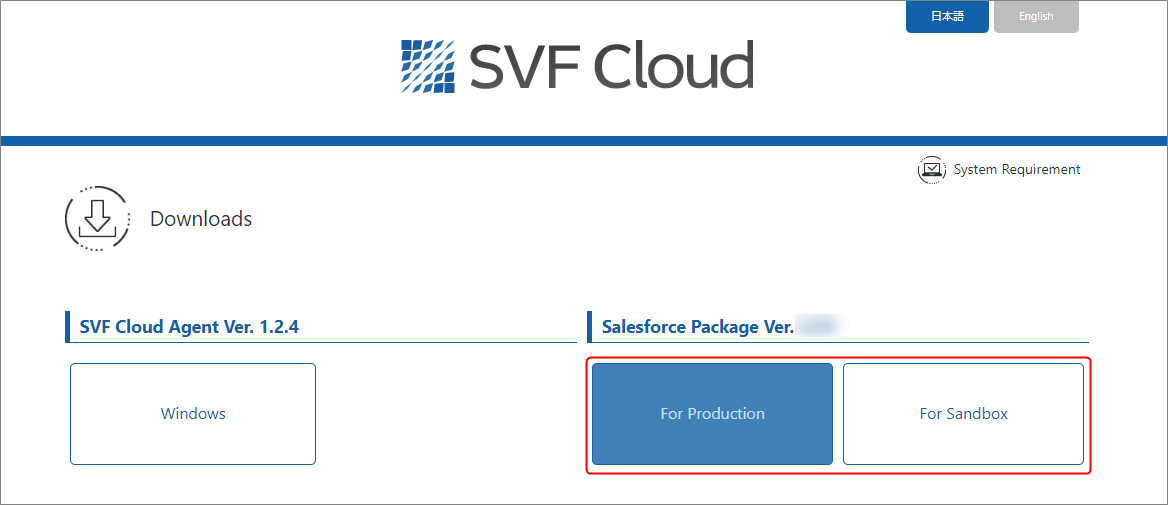
Go to the following URL and click Download.
https://repo.svfcloud.com/manual/release/en/manager/index.html
The download page for SVF Cloud related products will appear.
Under Salesforce Package Ver. <version number>, click the Salesforce organization type you want to install.
The Salesforce login screen appears.
Log in using the account of the organization where you want to install SVF Cloud for Salesforce.
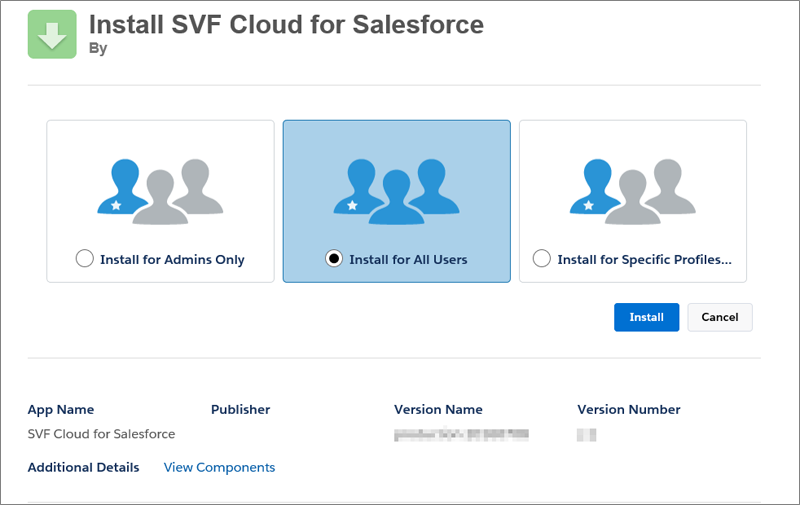
The Install SVF Cloud for Salesforce page appears. If you are upgrading an installed package, the Upgrade SVF Cloud for Salesforce page appears.
Select Install for All Users and click the Install button. If you are upgrading an installed package, click the Upgrade button.
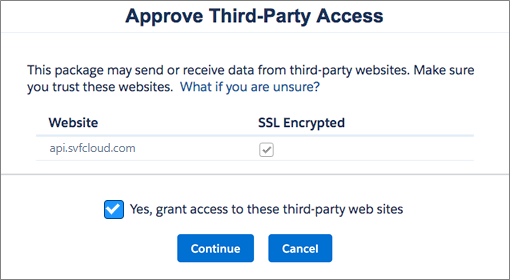
The Approve Third Party Access screen will appear.
Select the check box for Yes, grant access to these third-party web sites and click the Continue button.
The installation starts.
When the installation is completed successfully, the Salesforce user who installed the package will receive a notification email.
Installation of SVF Cloud for Salesforce package is now complete.