Change the Salesforce connecting with SVF Cloud
You can change the Salesforce connecting with SVF Cloud in Sandbox by using SVF Cloud Manager. This is useful, for example, when the organization ID is changed by refreshing the Sandbox of Salesforce.
To connect to the production environment, you can use the Developer Edition only. You cannot connect to any other production environment.
Changing of connection destination must be performed by a user with system administrator permission.
Notes
This feature is only available in SVF Cloud for Salesforce.
SVF Cloud Manager in the Sandbox is used to change.
If the organization definitions (fields and permissions) differ before and after the change, an error may occur while creating a print button after changing. In this case, check the organization definitions and the SVF button settings before and after change, and edit the organization definitions after the change or modify the SVF button settings.
Log in to SVF Cloud Manager.
Click
 Environment Settings - Salesforce.
Click Salesforce Connection Information - Organization ID - Change Connected Organization.

Select a type of the changed Salesforce.
On the Salesforce login screen, enter the login information of the changed Salesforce.
Confirm information after the change, and click the OK button.
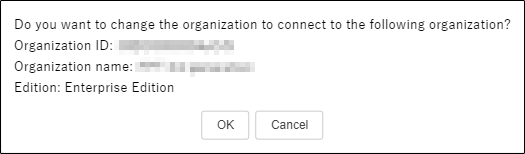
By clicking the OK button on the completion screen, changing the Salesforce connecting with SVF Cloud is complete.