Example
This section describes examples of how to use Virtual Relation.
For details such as how to perform operation on the actual screen, see "Output data using Virtual Relation".
Objects in a layer far from the base object
This section explains an example of creating an invoice.
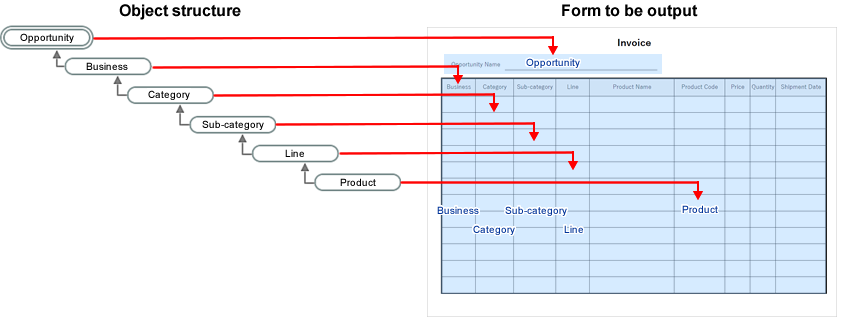
A user creates an invoice for each opportunity, and outputs data such as the category and the name of the product to be sent.
These data are stored in each object (Business object or Category object) related with the Opportunity object.
 |
Build Virtual Relations
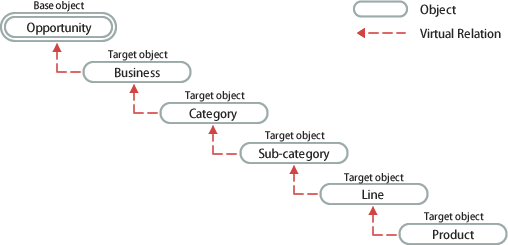
Build Virtual Relations from Opportunity object as the base point to Products object in order, such as between Opportunity object and Business object, between Business object and Category object.
Here, the user needs to build five Virtual Relations. This section describes building two Virtual Relations between Opportunity object and Business object, and between Business object and Category object as an example.
Virtual Relation between Opportunity object and Business object
The two objects are related using the "Opportunity ID" field in each object as an external key.
Setting item
Setting
Related Object
Opportunity
Target Object
Business
Type
Detail Object
Join Criteria / Filter Criteria
Field of Business
Opportunity ID
Operator
equals
Field / Value
Field
Field of opportunity
Opportunity ID
Output Conditions
Limit the Number of Outputs
Clear the check box.
Maximum Number of Outputs
(Not specify)
No.1 Sort Condition
Field
Business ID
Order
Ascending order
Virtual Relation between Business object and Category object
The two objects are related using the "Business ID" field in each object as an external key.
Setting item
Setting
Related Object
Business
Target Object
Category
Type
Detail Object
Join Criteria / Filter Criteria
Field of Category
Business ID
Operator
equals
Field / Value
Field
Field of Business
Business ID
Output Conditions
Limit the Number of Outputs
Clear the check box.
Maximum Number of Outputs
(Not specify)
No.1 Sort Condition
Field
Category ID
Order
Ascending order
Build other three Virtual Relations by specifying an external key between objects in the Join Criteria / Filter Criteria field.
Create SVF buttons
Create an SVF button in the  SVF Button Settings screen, and specify the fields to be output.
Setting item | Setting |
|---|---|
Salesforce Object | Specify Opportunity object |
Field - Salesforce Field - Detail Object | Specify the object fields to be output from each Virtual Relation you built. |
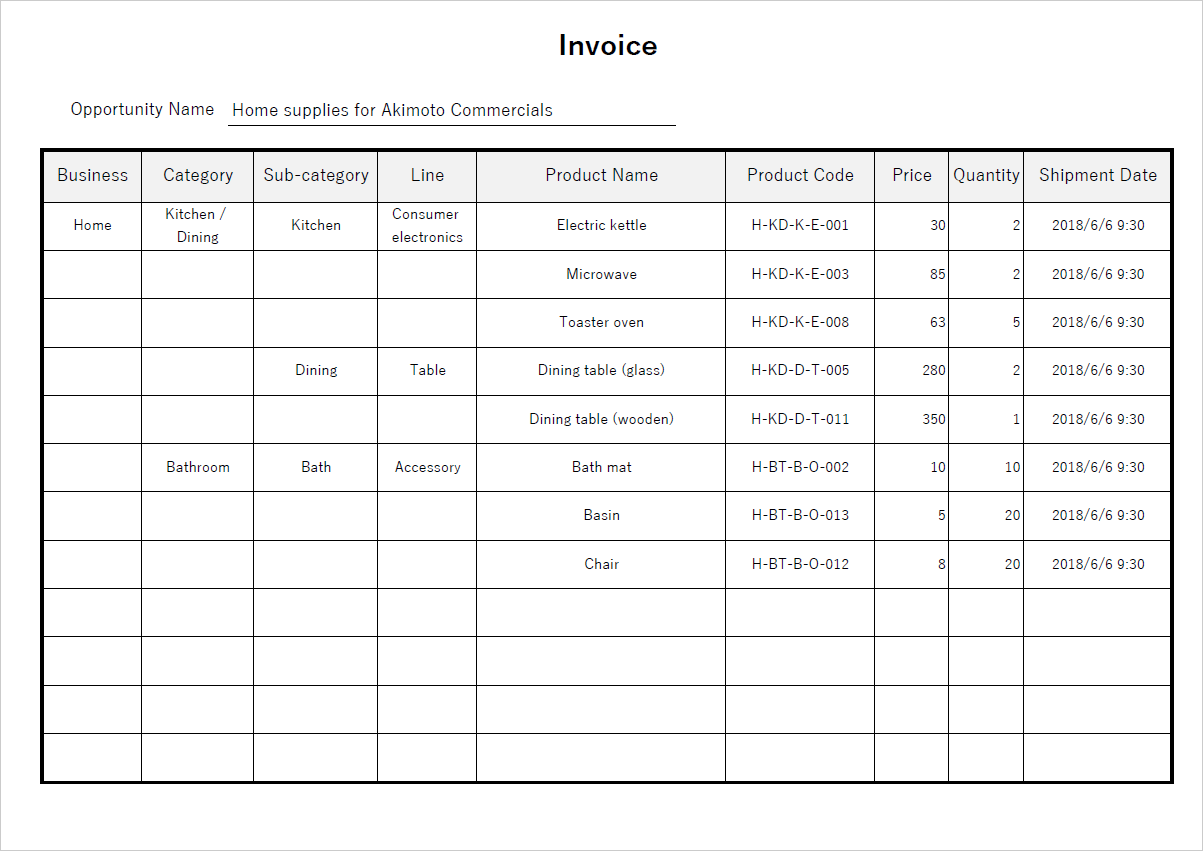
Example of output form
 |
Multiple child objects of the base object
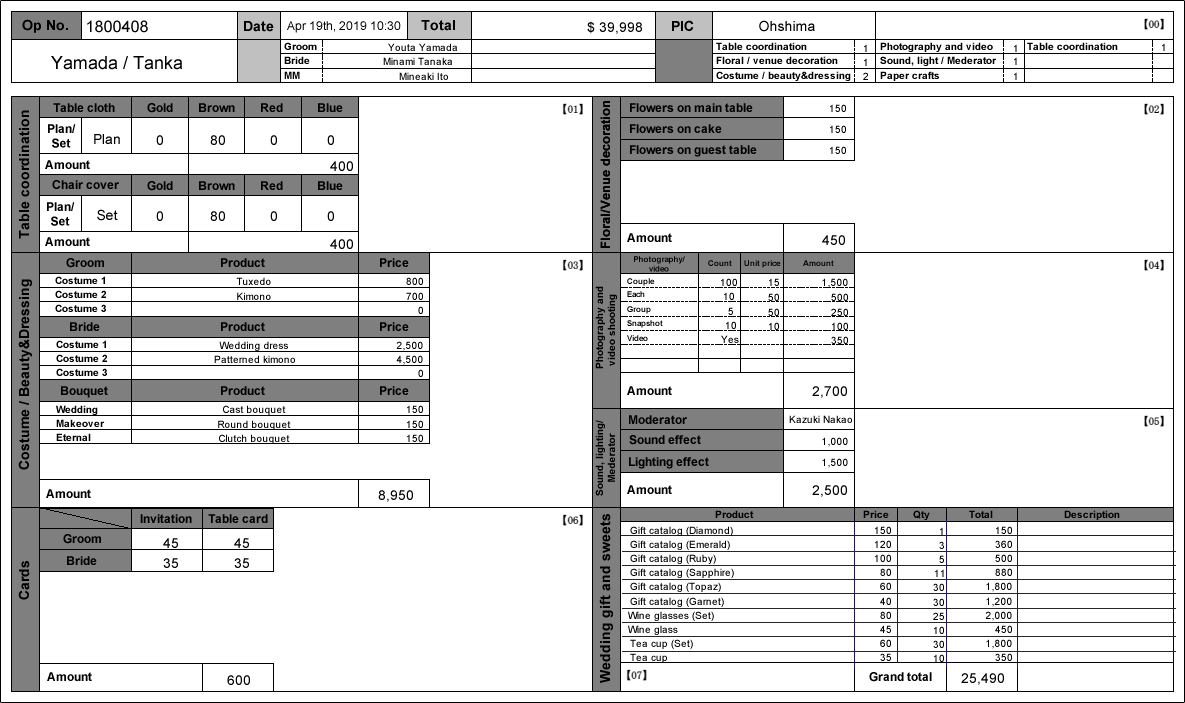
This section explains how to create quotes for wedding as an example.
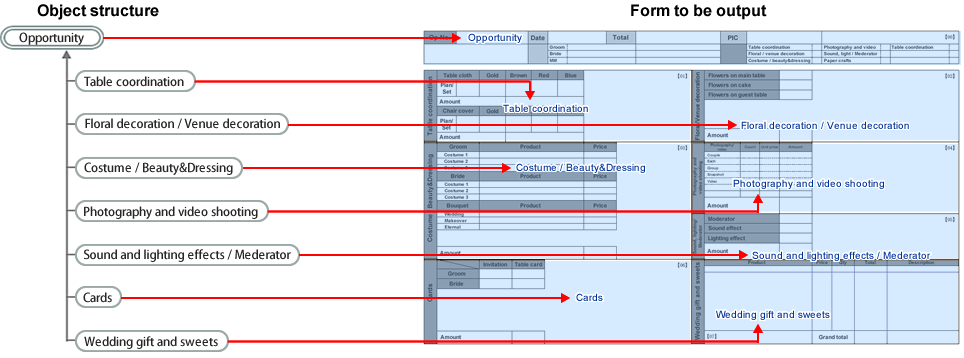
A user creates quotes for wedding for each opportunity, and outputs the data such as Table coordination, Flower decoration/Venue decoration.
These data are stored in each object related with the Opportunity object as a child object, such as Table coordination object, Flower decoration/Venue decoration object, etc.
The records output from each object are narrowed down to one. However, 10 records are output as details only for Wedding gift and sweets object.
 |
Caution
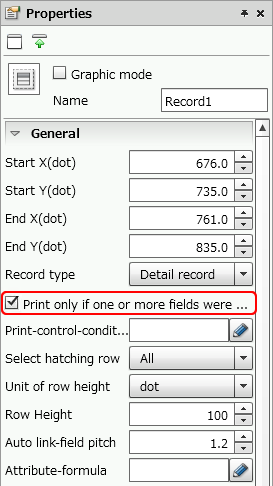
If you want to output multiple records from a child object as a detail record, select Print only if one or more fields were modified in General of Properties for the record of SVF Cloud Designer.
 |
Build Virtual Relations
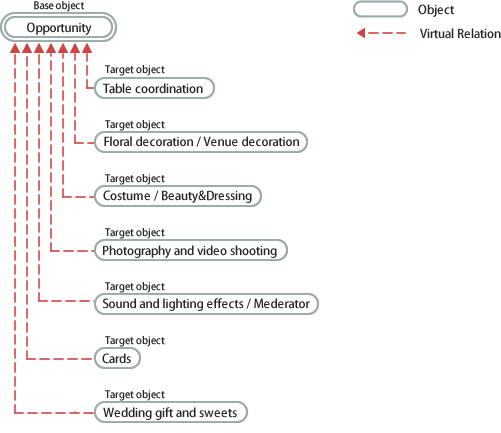
Build Virtual Relations between Opportunity object as the base point and child object such as between Opportunity object and Table coordination object, and between Opportunity object and Flower decoration/Venue decoration object.
Here, the user needs to build seven Virtual Relations. This example describes building two Virtual Relations between Opportunity object and Table coordination object, and between Opportunity object and Wedding gift and sweets object as an example.
Virtual Relation between Opportunity object and Table coordination object
The two objects are related using the "Opportunity ID" field in each object as an external key.
Setting item
Setting
Related Object
Opportunity
Target Object
Table coordination
Type
Detail Object
Join Criteria / Filter Criteria
Field of Table coordination
Opportunity ID
Operator
equals
Field / Value
Field
Field of opportunity
Opportunity ID
Output Conditions
Limit the Number of Outputs
Select the check box
Maximum Number of Outputs
1
No.1 Sort Condition
Field
Table coordination ID
Order
Ascending order
Virtual Relation between Opportunity object and Wedding gift and sweets object
The two objects are related using the "Opportunity ID" field in each object as an external key.
Setting item
Setting
Related Object
Opportunity
Target Object
Wedding gift and sweets
Type
Detail Object
Join Criteria / Filter Criteria
Field of Wedding gift and sweets
Opportunity ID
Operator
equals
Field / Value
Field
Field of opportunity
Opportunity ID
Output Conditions
Limit the Number of Outputs
Select the check box
Maximum Number of Outputs
10
No.1 Sort Condition
Field
Wedding gift and sweets ID
Order
Ascending order
For the other five Virtual Relations, build Virtual Relations by specifying an external key ("Opportunity ID" in this case) between objects in the field in Join Criteria / Filter Criteria.
Create SVF buttons
Create an SVF button in the SVF Button Settings screen, and specify the fields to be output.
Setting item | Setting |
|---|---|
Salesforce Object | Specify Opportunity object |
Field - Salesforce Field - Detail Object | Specify the object fields to be output from each Virtual Relation you built. |
Example of output form
 |