2-2 Set user profile
You can use the user profile to configure various settings for login users such as the display language, automatic save, and color theme.
Make user profile settings as follows:
Click the
 User profile settings button on the toolbar of Explorer.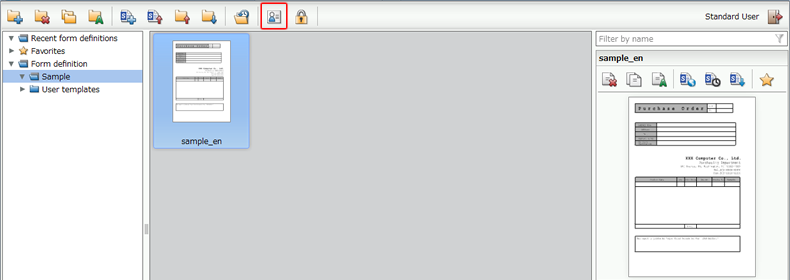
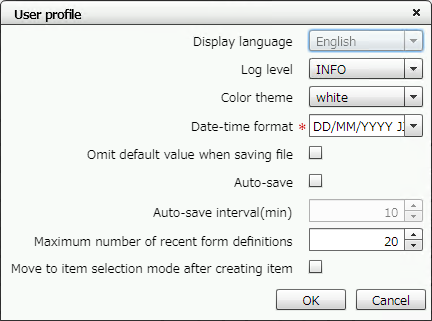
Set the various items in the User profile dialog and click the OK button.
" *" is a required input item.
Item
Description
Display language
This cannot be set in SVF Cloud Designer. The display language of SVF Cloud Manager will be used.
Specify the display language for the work environment. Select a language from Japanese, English, and Simplified Chinese. The menu and item names are displayed in the specified language.
Log Level
Specify the log level for log files.
The default value is "INFO".
The log level should be changed only when so directed by the support center during troubleshooting.
Color theme
Specify the color of dialog title bars and Form Editor toolbars.
Date-time format*
Specify the display format for the date and time of the last update of a form definition.
In addition to the display formats in the drop-down list, you can set the following string patterns:
Item
Configurable patterns
Year
YYYY, YY (last two digits)
Month
MM, M (zero omitted)
Day
DD, D (zero omitted)
Hour
JJ, J (zero omitted)
Minutes
NN, N (zero omitted)
Seconds
SS, S (zero omitted)
Omit default value when saving file
If you select this check box, the properties with the same values as the default values (default values for printing) are deleted from the items placed during designing a form so that the size of a form definition file to be saved can be reduced.
However, the properties of paper and charts will not be deleted, even if they have the same values as the default values.
Auto-save
If you select this check box, form definitions are automatically saved at the interval specified in Auto-save interval(min).
However, if any of the following conditions is met at the time of automatic saving, the form definitions are not automatically saved.
The session is disabled after logging in
Another user has saved the same form definition
Caution
If another user opens a form definition that you are editing, the auto-save setting of the form definition becomes invalid for the second user.
Auto-save interval(min)
Specify the interval in minutes at which form definitions are automatically saved.
The default value is ten minutes.
Maximum number of recent form definitions
Specify the maximum number of form definitions that is displayed as thumbnails in the "Recent form definitions" directory in the directory tree with a value from 1 to 30.
Move to item selection mode after creating item
If you select this check box, it will shift to item selection mode after creating an item on Form Editor and you can select an item by clicking. If you do not select it, you can continue creating items of the same type after creating an item in Form Editor.